In addition to the changes introduced by Android 12L, this month also coincides with the March Feature Drop for Pixel phones.
On tablets and foldables, Android 12L adds a taskbar (up to six apps) to quickly initiate split-screen and switch between applications when multitasking:
You can also drag-and-drop any app from the taskbar to enter split-screen mode so you can do two things at once. You can watch a YouTube video while you scan the news, or search for accommodations for an upcoming trip in a Chrome browser while you view its location in Google Maps.
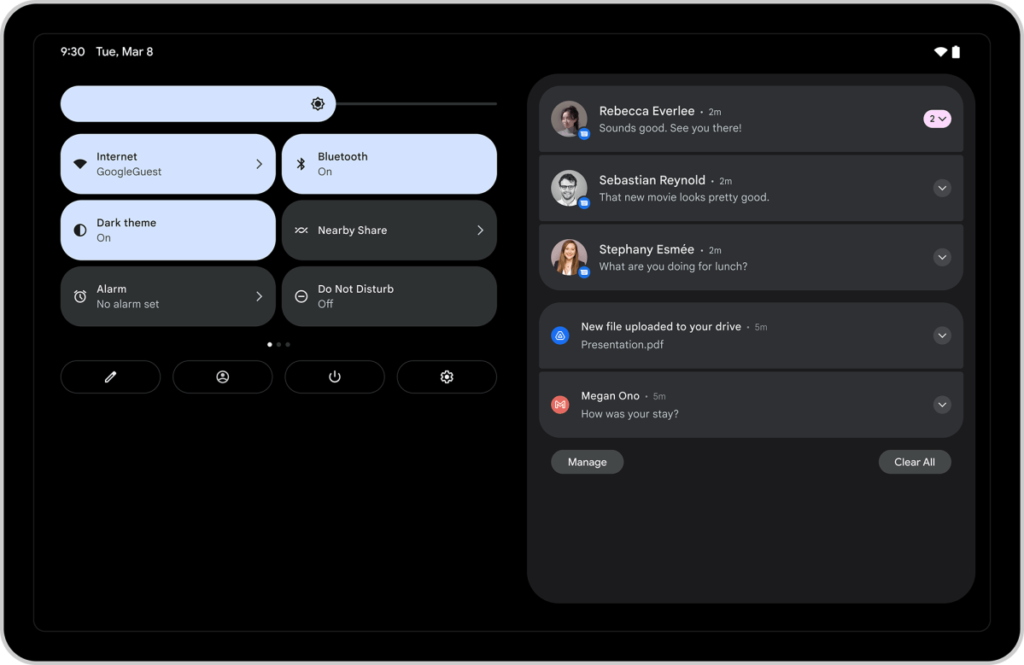
The Recent screen also gets a grid view, while there’s a two-column layout for the Lock screen and notifications. This is meant to “give you more space to view and swipe away your notifications.” The Quick Settings toggles (or clock) appear at the left and notifications to the right.
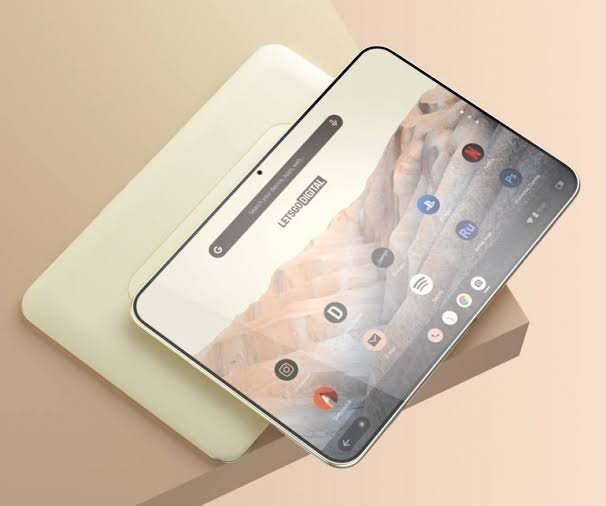
The Settings app and other parts of Android are also getting tablet and foldable optimizations. On the home screen, the search field in some configurations might appear in the dock alongside the row of apps.
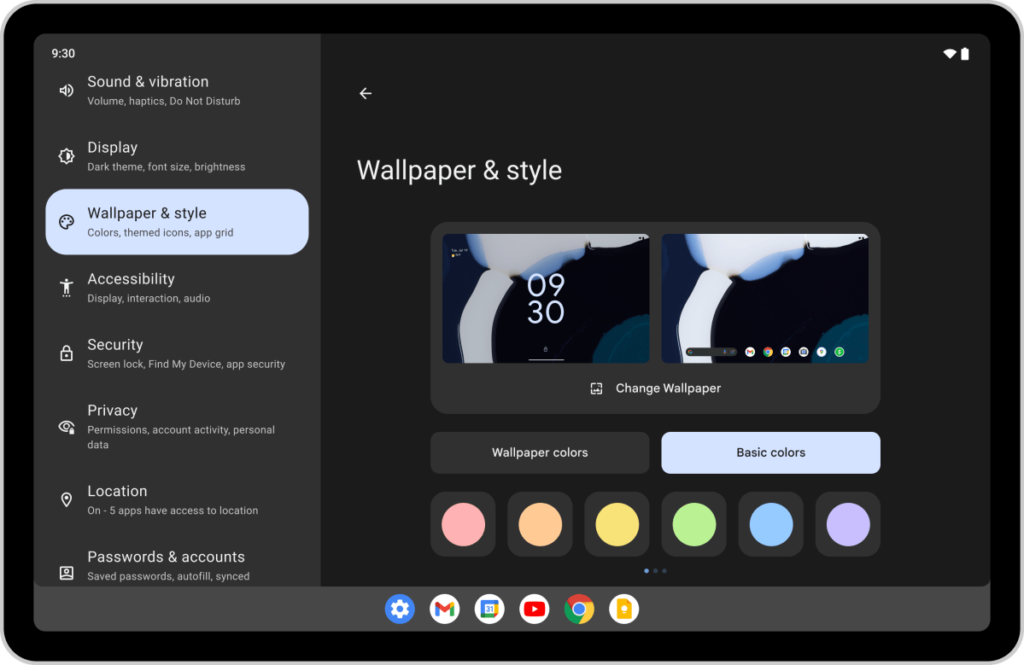
When setting up a new device, you’ll also be able to see more information with a two-column layout. And, you’ll be able to make changes to features in your Settings without having to go in and out of each section. Let’s say you’re looking to change the wallpaper on your device — select “Wallpaper & style” from the navigation panel and make your pick on the side, all in one view.
Samsung, Lenovo, and Microsoft are planning to release Android 12L updates for their tablets and foldables “starting later this year.” Google commits to adding “more features and functionalities to help you make the most of your larger screen devices in Android 13 and beyond.”
Android 12L Pixel launch
The Android 12L launch starts today for the Pixel 3a, Pixel 3a XL, Pixel 4, Pixel 4 XL, Pixel 4a, Pixel 4a 5G, Pixel 5, and Pixel 5a. It’s rolling out to the Pixel 6 and Pixel 6 Pro later this month. Visit Settings > System > System update and tap “Check for update” if the OTA hasn’t already appeared on your device.
Google this evening informed Android developers that Play Store users in Russia will soon lose the ability to purchase apps, games, IAPs, and subscriptions.
The company cites a “payment system disruption” as the reason it’s “pausing” Google Play billing “in the coming days.” This comes as Russia has been sanctioned by multiple countries over its invasion of Ukraine.
In addition to application purchases, you will no longer be able to make subscription payments or in-app purchases “of digital goods using Google Play in Russia”.
However, free apps will remain available to download, along with any past purchases. There are no other changes to the Google Play Store’s availability in Russia, while developers can still publish and update applications.
The situation is rapidly evolving and we encourage you to return to this page for the latest information.
Subscriptions will continue until the end of the current billing period, but be canceled afterwards due to the lack of payment. As a workaround, Google suggests deferring a user’s renewal, which is possible for up to one year:
The user will retain full access to the content but will not be charged during the deferral period. The subscription renewal date will be updated to reflect the new date.
Another possibility offered is making apps free or removing the paid subscription “during this pause.” This is intended for applications that provide a “critical service to users that keeps them safe and provides access to information.”
Here are top free apps for turning a photo to art painting on mobile
It may take artistic geniuses hours upon hours to complete their masterpieces, but you can now make one in minutes. Thanks to some photo to painting apps, you can use your smartphone to turn any selfie or photo into an instant painting.
Stunning filters will allow you to select between a wide variety of painting styles. Soon, you’ll be impressing all of your friends with your beautiful and creative pieces—whether you use them for profile pictures or hanging wall prints.
1. Prisma Photo Editor
Prisma kicked off the art-style filter craze because it is remarkably easy to use and does a few things none of the other apps on this list do.
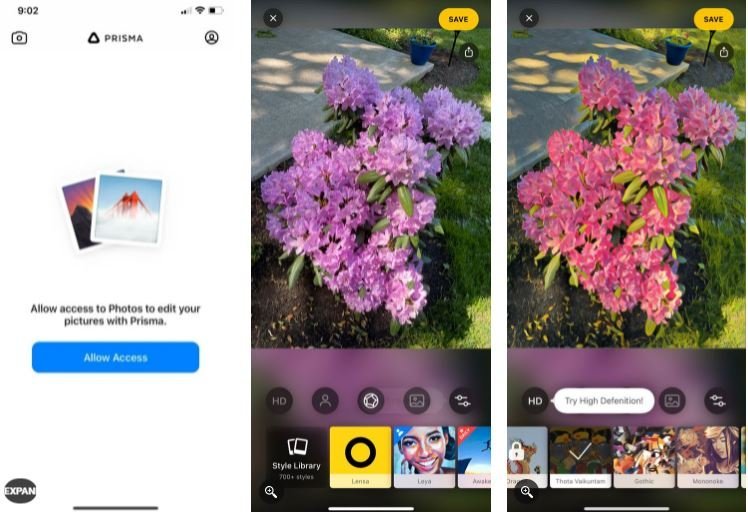
With Prisma, once you choose a photo and a filter, it will apply the filter immediately and show you a preview of your final image. You can then slide your finger left or right to denote the intensity of the filter, from 0 to 100 percent. There are also the usual image editing options like exposure, contrast, saturation, and more.
The free version has plenty of great filters already. If you want to unlock over 500 filters and effects, you’ll need to subscribe to the Premium plan for $1.99 per week.
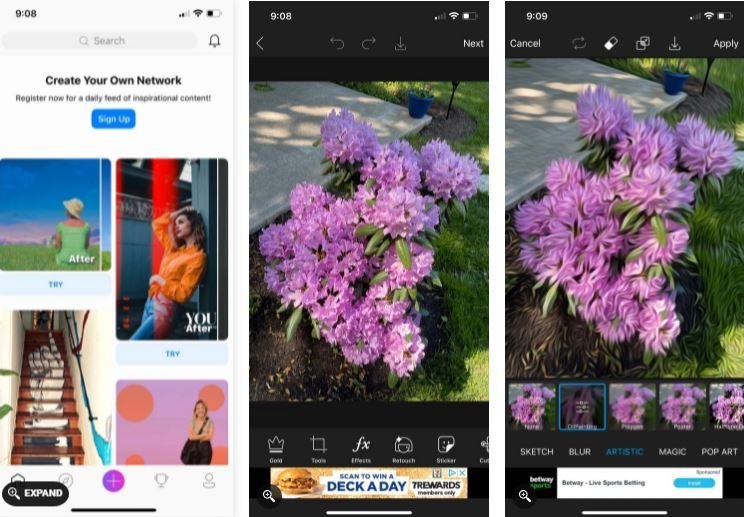
PicsArt Photo & Video Edito
If you’re looking to do more than simply transform a photo into a painting, PicsArt is a fantastic option. The app functions as a full photo editing service complete with selfie and video editing capabilities, collage layouts, and a selection of beautifying tools and filters
Within these filters, you’ll find a few different options that will allow you to completely alter the appearance of your selected photo into that of an artist’s painting. You can edit the photo to near perfection and change the filter for pure artistry in minutes.
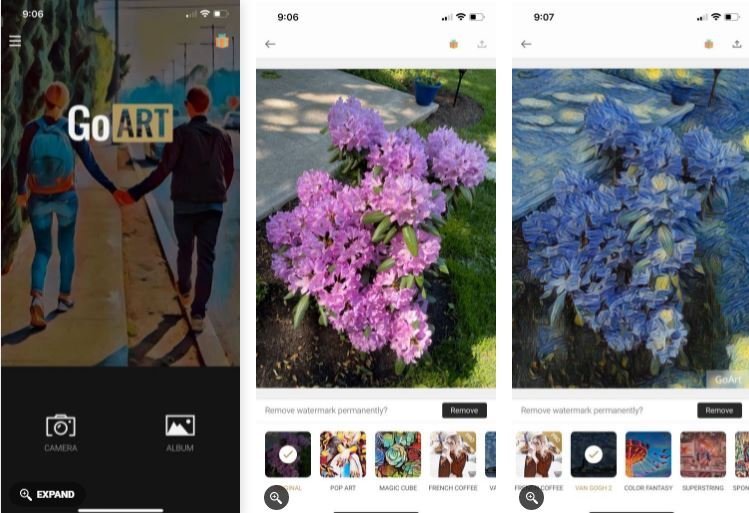
GoArt: Art Photo Editor
Another excellent app to help you turn a photo into a painting is GoArt. GoArt has been designed with a major focus placed on the ability to print the art that you create. This brings some excellent benefits and a few potential issues for your photo needs.
The app uses AI technology to convert the photo into an artistic piece. Although it creates a clean and quality image, this can take a few minutes to process, unlike most instantaneous options. However, like Prisma, GoArt allows you to adjust the intensity of the effects to ensure the resultant artwork is of your liking.
Once you’re finished, you’ll notice there’s a watermark on the photo. You can save up virtual coins in the app to remove it or upgrade to the premium version for its complete removal.
You can select from various art styles, including everything from expressionism to structuralism. Create masterpiece after masterpiece and frame them on your walls at home.
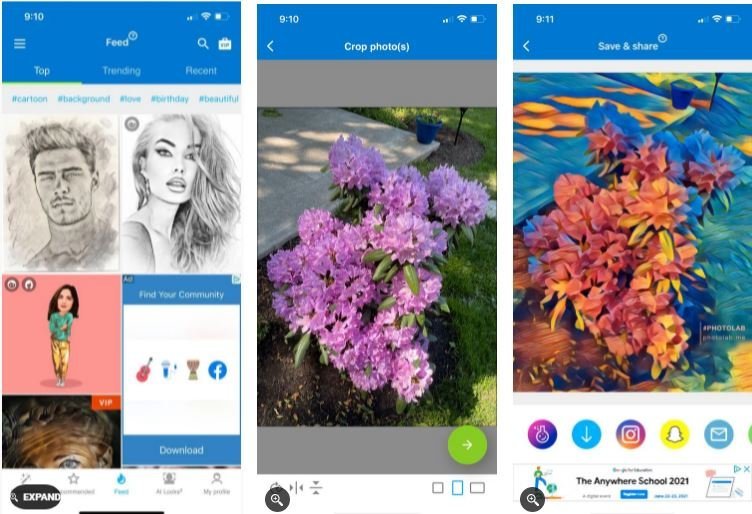
PhotoLab: Art Picture Editor
If you love experimenting with funny, creative, and beautiful filters, PhotoLab: Art Picture Editor is the right app for you.
This is a great option for people looking to add a little something extra to their social media pages. PhotoLab is more than just a photo to painting app. The AI-driven tech is extremely easy to use and will automatically do edits, like cropping, for you.
From the app, you can easily upload your image to social media or share it on a platform specifically designed for sharing digital art. PhotoLab has a wide range of filters available, so you can try different ones to see which one suits a specific picture.
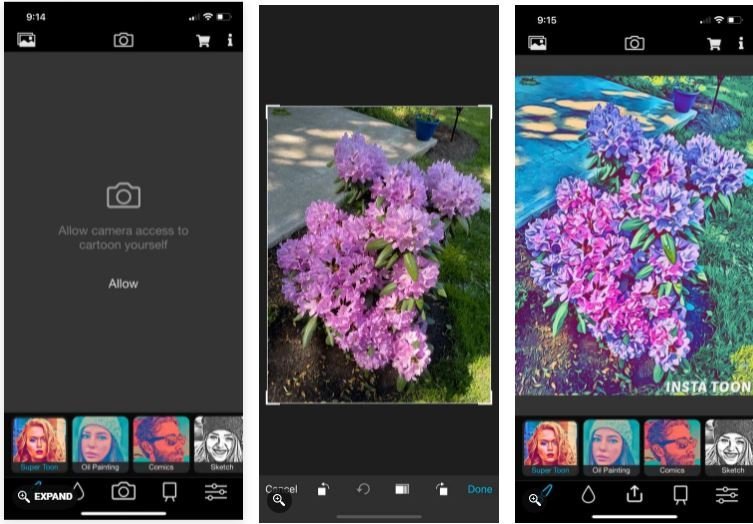
Insta Toon: Cartoon and Art Cam
Insta Toon has developed a strong fan following by providing a high-quality product that actually delivers exactly what you’re asking for. There are fewer photo editing tools available in this app, as it focuses strictly on turning your photos into paintings.
Simply upload an image from your camera roll or take a picture in real-time to get started. From there, scroll through the list of available filters until you find the perfect fit. There are a plethora of filter options, including black and white sketch designs, oil paintings, and comics.
You can save the new piece as a still image, GIF, or video, and share it with family and friends. You can also export in different resolutions, including SD, HD, and Full HD. This app is only available for iPhone, however.
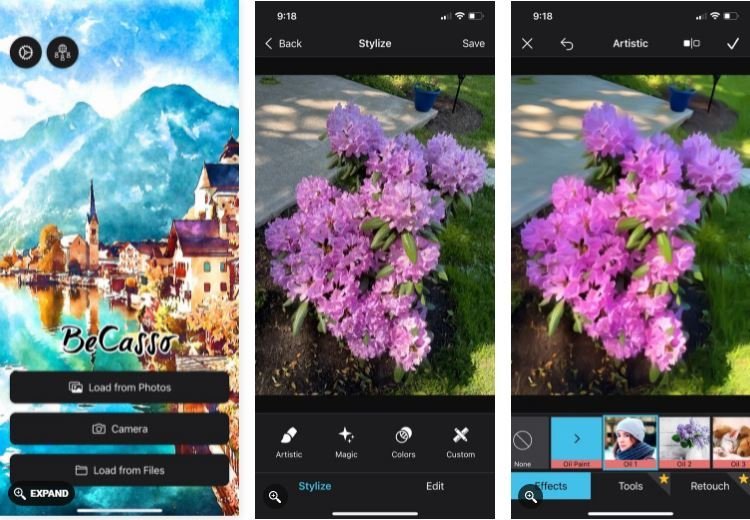
BeCasso: Photo to Painting App
BeCasso is filled with premium artistic filters that are styled after your favorite artists, like Vincent Van Gogh and Picasso himself. After uploading your selected photo, scroll through a long list of different artistic techniques and select the filter that you love.
You’ll want to touch up your photos before uploading them, as most of the photo editing tools in this app are unlocked only after paying for a subscription.
One of the coolest aspects of this app is the partnership with MyPostCard. For a very small fee, the app will turn your new art piece into a postcard and send it to an address of your choice.
Back in October, Google announced Android 12L as an unexpected “special feature drop” to improve the OS on tablets and foldables devices. After one 12L developer preview and three betas, this next release of Android — officially version 12.1 — is launching for Pixel phones alongside the March Feature Drop, while Google detailed what’s coming for tablets and foldables.
Android 12L for phones
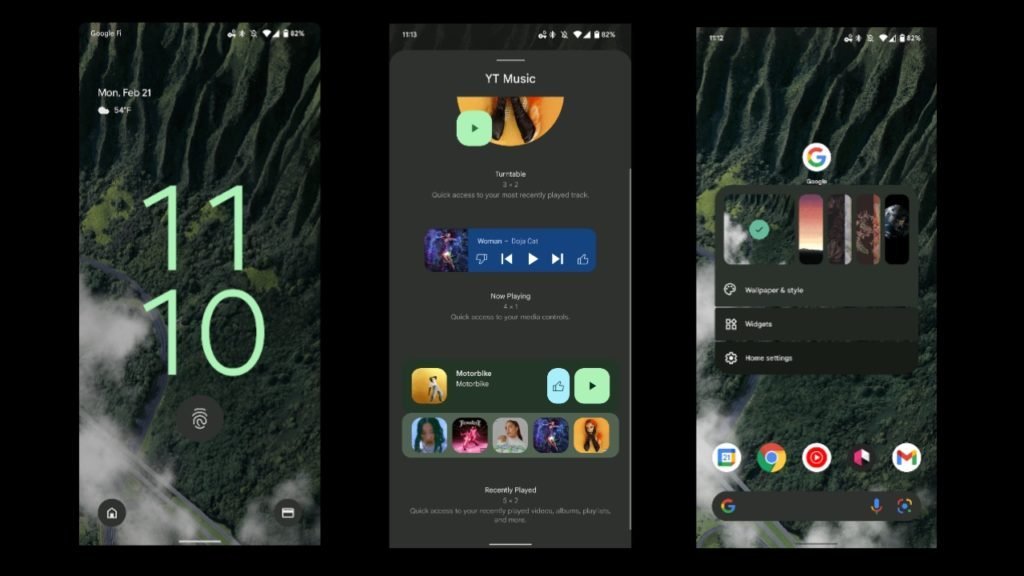
Compared to Android 12 in October, 12L makes a number of usability improvements with a handful of new animations, including a pulsing when using the under-display fingerprint sensor on the Pixel 6. Speaking of the lockscreen, those that are quite upset with the big Material You clock when there are no notifications can now disable it from Settings > Display > Lock screen > Double-line clock. The time will then always appear in the top-left corner.
On the homescreen, long-pressing reveals a new quick wallpaper picker that shows your current and last four backgrounds. Tapping on one immediately updates your wallpaper with a flashy animation. At a Glance also gets a small update where tapping the day/date once again opens Google Calendar. It’s a bit hard to not accidentally launch Google Weather, and your best bet is tapping the numeral. Lastly, when opening an app’s Widgets menu, the sheet now takes up the full page.
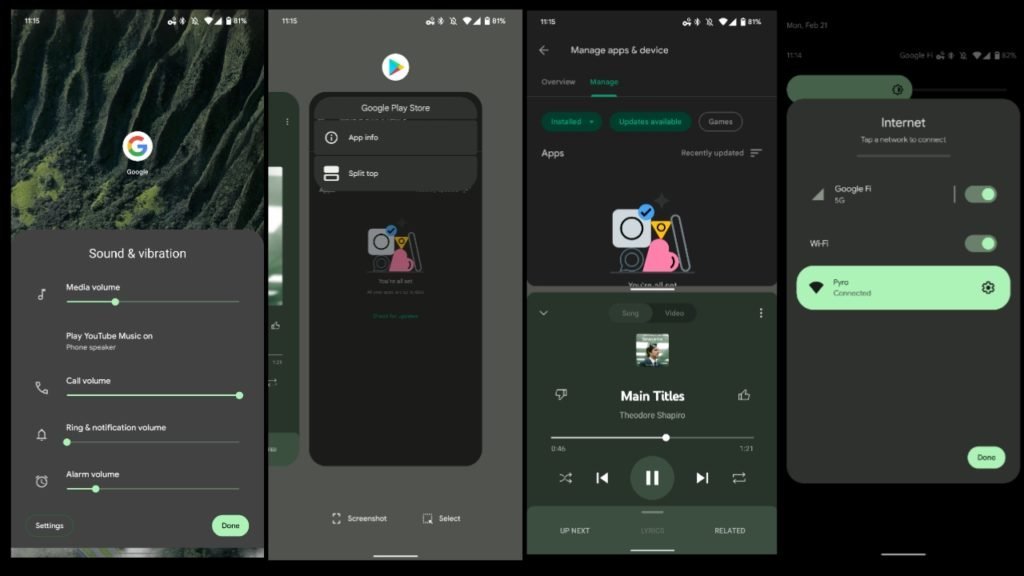
Android 12L makes a handful of tweaks to Quick Settings. The “Internet” (which gets a “Turn off airplane mode” shortcut) and “Screen record” tiles are no longer docked to the bottom/top of the screen, but instead are centered. There’s also a delightful animation where the Power menu expands out of and contracts into the button at the bottom of the QS row.
In the Recents multitasking menu, “Split screen” is now called “Split top” and sees the app windows get a more prominent divider and curvature. Elsewhere, various UI elements – including “Sound & vibration” and “Unblock device camera/microphone” – have been updated with better Material You spacing and new buttons.
During the Apple Spring Event 2022, the company announced the new M1 Ultra processor. It’s a system-on-a-chip (SoC) that basically stitches together two M1 Max chips to achieve double the processing cores across the board. And Apple made some big claims about how the 64-core GPU stacks up to the competition.
Here’s the claim from Johny Srouji, Apple’s senior vice president of hardware technologies: “M1 Ultra delivers faster performance than the highest-end GPU available while using 200W less power.”
As usual, Apple didn’t name names, but you can see from the relative performance chart above that it’s comparing the M1 Ultra to an RTX 3090. Apple’s claim about efficiency is probably true and then some. We’ve seen the incredible efficiency of the M1 family time and again. But more powerful? That’s unlikely.
I haven’t had the chance to test the M1 Ultra yet, but I have a good idea about how it will perform. It’s just two M1 Max chips stitched together, and assuming Apple’s interconnect is up to snuff, it should provide around twice as much performance. Even then, it’s not close to the RTX 3090.
There are some applications where you may find similar performance. I have limited data — MacBook Pro versus the RTX 3090 isn’t exactly a popular comparison — but the M1 Ultra could come close to the RTX 3090 in apps like Premiere Pro. The graphics card is far from the only component that’s relevant in Premiere Pro, but it’s still something for the M1 Ultra.
Move onto a more GPU-bound application, and the M1 Ultra gets put back in its place. The M1 Pro finished the BMW benchmark in Blender in three minutes and 26 seconds. The RTX 3090? 17 seconds. Even assuming that the M1 Ultra has four times the GPU performance as the M1 Pro — it has four times as many cores — it’s not even in the same league as the RTX 3070, let alone the RTX 3090.
And don’t even think about gaming. In Fortnite, the M1 Pro managed just shy of 60 frames per second (fps) at 1080p with the High preset. Quadruple that to be favorable to the M1 Ultra, and you have 240 fps. The RTX 3090 manages 260 fps, and that’s while being vastly CPU limited at 1080p. I’ve actually recorded higher results with the RTX 3090 at 1440p.
Keep in mind, too, that Apple is making this claim about an integrated GPU. I’ve absolutely seen integrated GPU performance beyond my wildest dreams with the M1 family, but still, it’s nothing that holds a candle to a full desktop GPU. Apple doesn’t have a secret sauce, and an SoC that can fit in your hand is not going to outperform a 15-inch GPU with its own cooling apparatus. And Apple needs to fit the rest of the PC on the M1 Ultra, too.
We won’t really know if the M1 Ultra can outclass the RTX 3090 until it’s here, but you shouldn’t count on it when considering a Mac Studio pre-order. I’m rooting Apple here, too — if the M1 Ultra can outclass the RTX 3090, I will eat my words with a smile until the plate is clean.
To understand how best to pay down your debt, you first need to understand how much you owe. Add together all your debts, including credit cards, short-term loans, student loans, and any mortgages or auto financing you have in your name. Look at your total debt numbers to help you understand how much you owe and how long it will realistically take to pay it off.
2. Prioritize high-interest debts.
Debts like credit cards tend to have higher interest rates than things like student loans. The longer you carry a balance on high-interest debts, the more you ultimately pay. Prioritize paying down your highest-interest debts first, making minimum payments on other debts and putting extra money into your top debt priorities.
If you have a short-term loan (a car loan, for example), pay that down, too, as quickly as possible. Such loans can become very expensive if not paid off in full and on time
3. Go straight from paying off your highest-interest debt to paying off your next-highest-interest debt.
When you pay off a credit card balance, don’t roll that payment amount back into your discretionary funds. Instead, roll the amount you were paying into your next debt.
If, for example, you finish paying off a credit card, take the amount you were putting toward that card and add it to the minimum payment you’ve been making on another card or a student loan. The point is that you want to eliminate all recurring, long- and short-term debt as soon as possible so that you can live interest-free.
Samsung has confirmed it recently suffered a security breach that saw hackers nab important company data.
The data included source code linked to the operation of Samsung’s popular Galaxy phones and tablets, the company confirmed to Bloomberg on Monday, March 7, adding that no customer data was stolen in the incident.
“There was a security breach relating to certain internal company data,” Samsung said in a statement. “According to our initial analysis, the breach involves some source code relating to the operation of Galaxy devices.”
Samsung said that the hack did not affect “the personal information of our consumers or employees,”and that it “does not anticipate any impact to our business or customers.”
It added that it has already put in place measures to prevent similar incidents happening again.
The company made no mention of the suspected perpetrator, though South American hacking group LAPSUS$ claimed responsibility several days ago, before Samsung released its statement.
The group, which hit the headlines earlier this month after it hacked chip giant Nvidia, posted online a 190GB torrent file that’s reported to contain confidential source code linked to biometric authentication and encryption for Samsung’s Galaxy devices, along with bootloader source code, also for Galaxy devices.
When Nvidia reportedly failed to meet various demands laid out by LAPSUS$, the hackers posted confidential NVIDIA data online, among it employee credentials and proprietary information. It’s not clear if the appearance online of Samsung data is because the Korean company also failed to comply with the hackers’ demands. Our source has reached out to Samsung for more information and we will update this article when we hear back.
Being smart with money doesn’t have to involve high-risk investments or having thousands of dollars in the bank. No matter what your current situation is, you can be more financially savvy in your everyday life. Start by building a budget to help you stay within your means and prioritize your financial goals. Then you can work on paying down your debt, building up your savings, and making better spending decisions.
Managing your budgets
1. Set your financial goals:
Understanding what you are working toward will help you build a budget to meet your needs. Do you want to pay down debt? Are you saving for a major purchase? Are you just looking to be more financially stable? Identify your top priorities so that you can build your budget to fit them.
2. Look at your overall monthly income.
A smart budget is one that doesn’t overextend your means. Start by calculating your total monthly income. Include not just the money you get from work but any cash you get from things like side-hustles, alimony, or child support. If you share expenses with your partner, calculate your combined income to figure out a household budget.
You should aim to have your overall monthly spending not exceed what you bring in. Emergencies and unforeseen occasions happen, but try to set a goal of not using your credit card to cover non-necessary items when your bank balances are low.
3. Calculate your necessary expenses.
Your first priority in building a better budget should be those things that need to be paid every month. Paying these expenses should be your first priority, as these items are not only necessary for daily activities but could also damage your credit if you fail to pay them in full and on time.
Such expenses may include your mortgage or rent, utilities, car payments, and credit card payments, as well as things like your groceries, gas, and insurance. Set up your bills on autopay to make them easy to prioritize. This way the money comes out of your account on the day the bill is due. Set up autopay only if you’re sure you’ll have enough money each month to pay those bills in full.
4. Factor in your non-essential expenses.
Budgets work best when they reflect your daily life. Take a look at your regular, non-essential expenses, and build them into your budget so that you can anticipate your spending. If you get a coffee every morning on the way to work, for example, throw that into your budget.
5. Look for places to make cuts.
Creating a budget will help you identify things you can cut from your regular expenses and roll into your savings or debt payments. Investing in a good coffee pot and a mug, for example, can help you save on your morning fix for years to come.
Don’t forget your longer-term expenses. Check things like insurance policies, and see if there are places you can scale back. If you are paying for collision and comprehensive insurance on an old car, for example, you may opt to scale back to liability insurance only.
6. Track your monthly spending.
A budget is a guideline for your overall spending habits. Your actual spending will vary each month depending upon your personal needs. Track your spending by using an expenses journal, a spreadsheet, or even a budgeting app to help you ensure that you are staying within your means each month.
If you do exceed your budget goals, don’t beat yourself up. Use the opportunity to see if you need to revise your budget to include new expenses. Remind yourself that getting off-target happens to everyone occasionally and that you can still get to where you want to be.
7. Build some savings into your budget.
Exactly how much you save will depend upon your job, your personal expenses, and your individual financial goals.[8] Aim to save something each month, however, whether it’s $50 or $500. Keep that money in a savings account separate from your primary bank account so that it doesn’t accidentally get spent.
This savings should be separate from your 401(k) or any other investments that you have. Building a small general-savings balance will help you protect yourself financially if an emergency comes up, such as a major repair on the house or unexpectedly losing your job. Many financial experts recommend a target savings of six months’ worth of expenses. If you have a lot of debt you need to pay down, aim for a partial emergency fund of two months’ expenses. Then focus the rest of your cash on your debt.
PRISM live studio allows you to live stream to multiple platforms including Facebook, YouTube, Twitch and more but on today’s video I will show you how to Livestream to Facebook page making use of Prism Live studio and it’s a free live streaming app.
To watch video of how to Livestream to Facebook page using prism live watch the video below if not keep reading this article to learn the same thing.
Steps in Live streaming to Facebook page with Prism Live studio
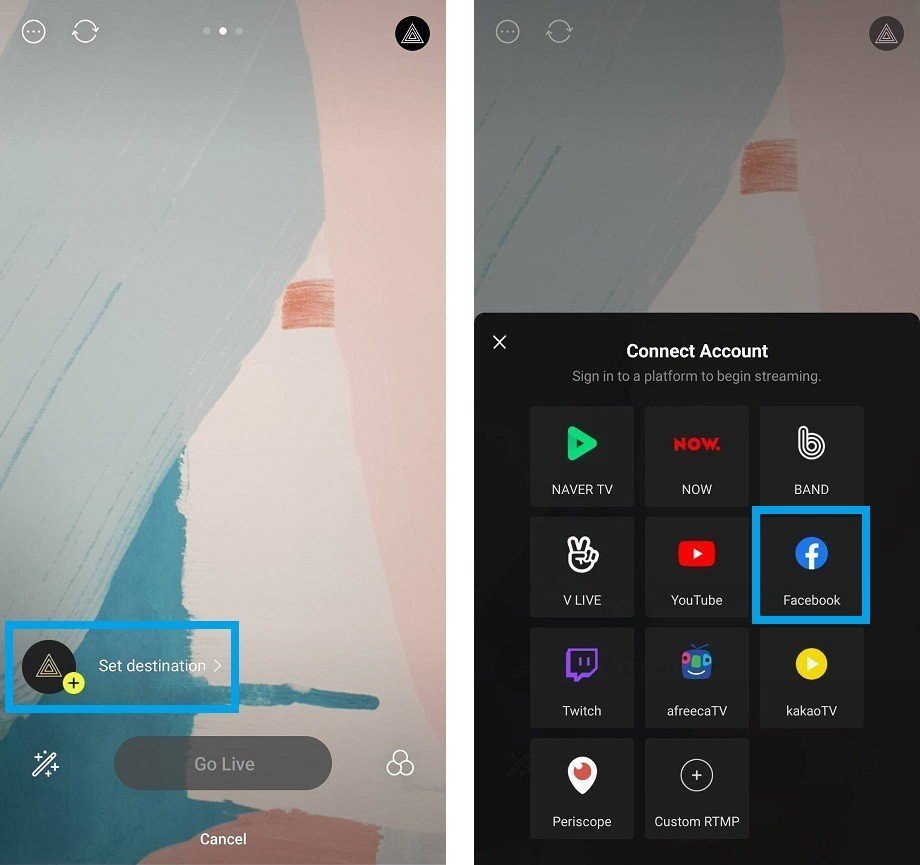
Once you open Prism Live studio your selfie camera will automatically be on and ready to go live with your selfie camera but if your a gamer or want to live activities on your screen you need to tab on the screencast icon just above the live / Go live icon once you tab on it Next tab on Live / Go live
Now tab on Set Destination and choose the appropriate destination you want to Livestream to for my case I will choose Facebook
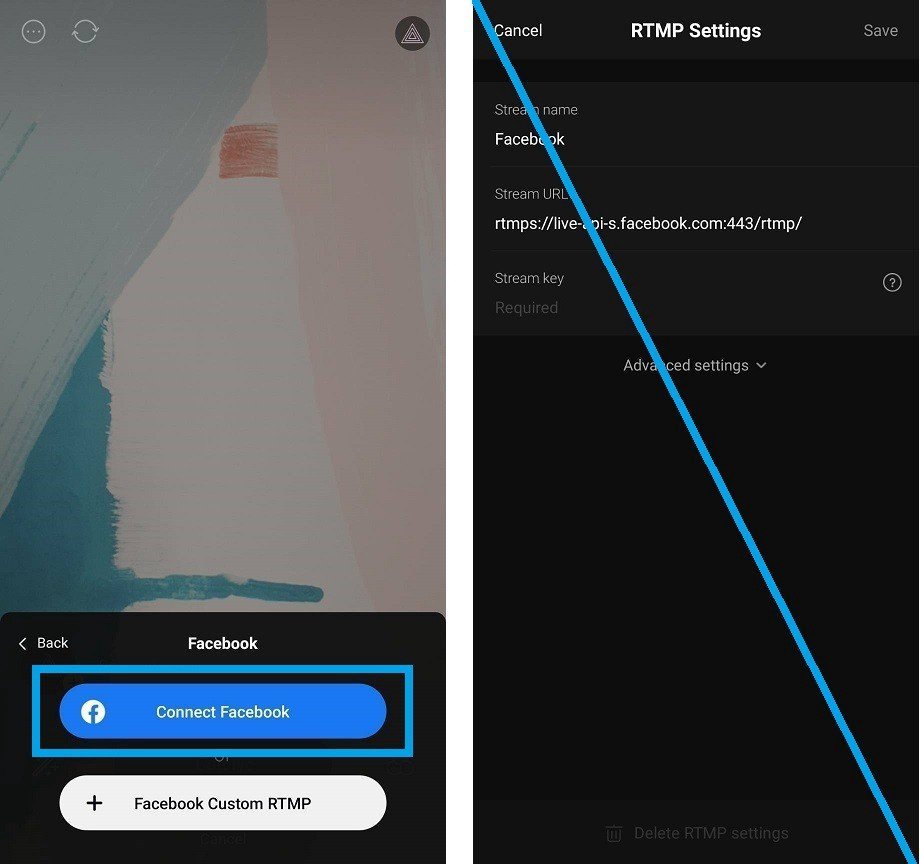
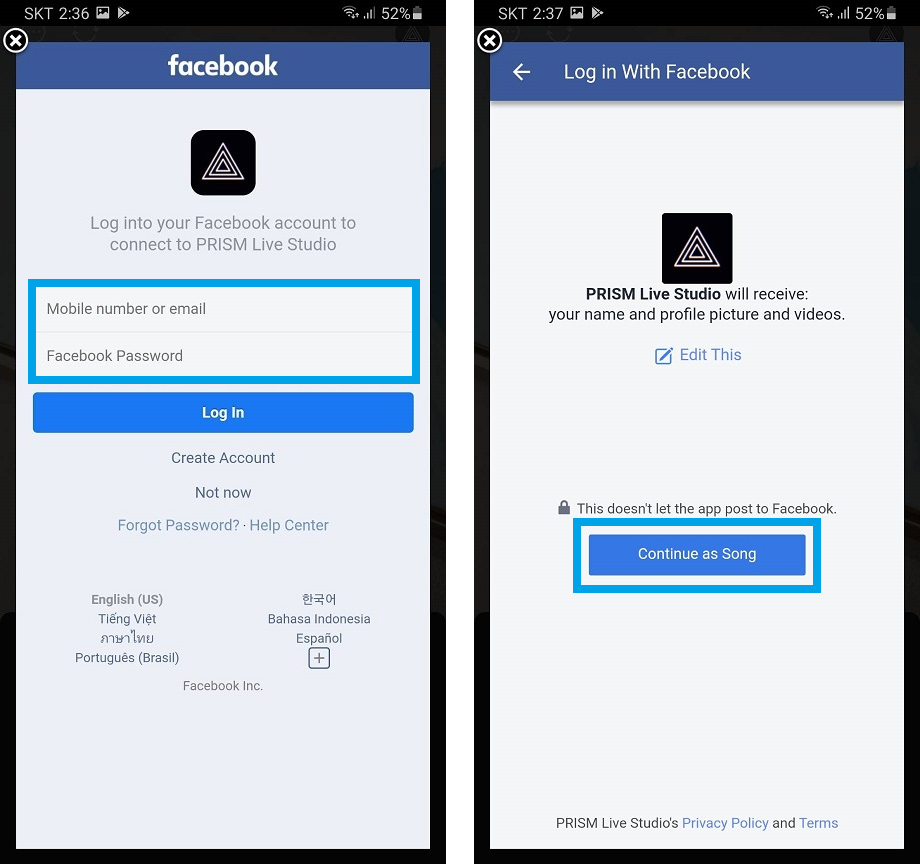
Tab Connect Facebook to login to your Facebook account
Tab on Continue after you logged it to accept Prism Live studio terms of use
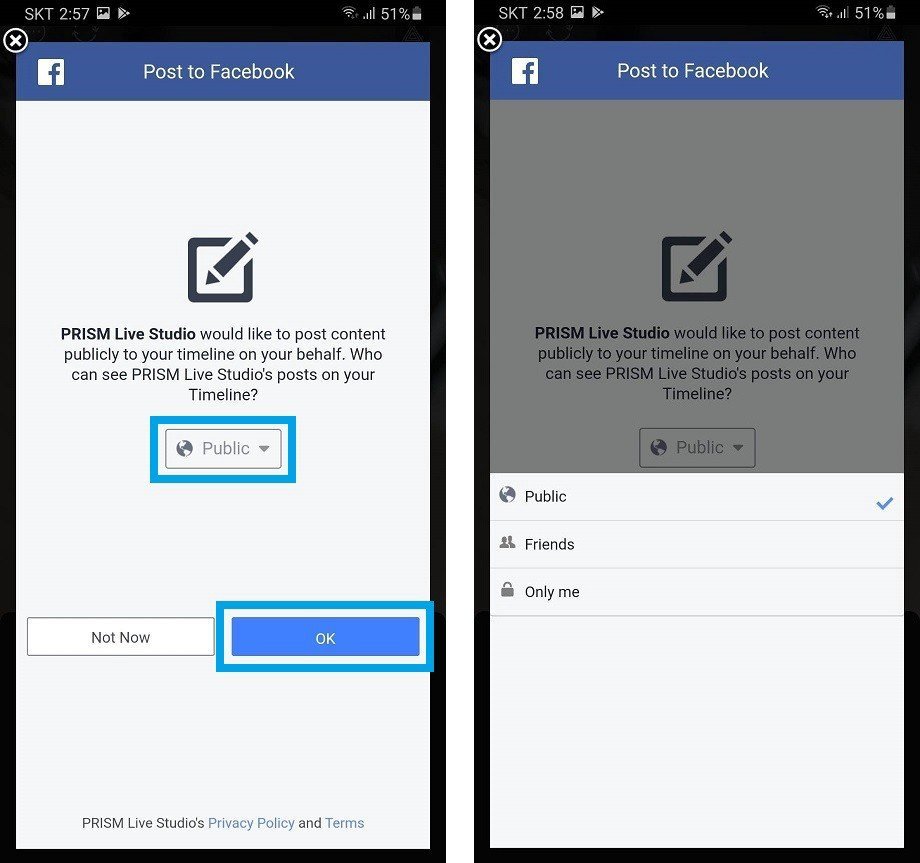
Tab Okay to Give prism privilege to publish to your Facebook
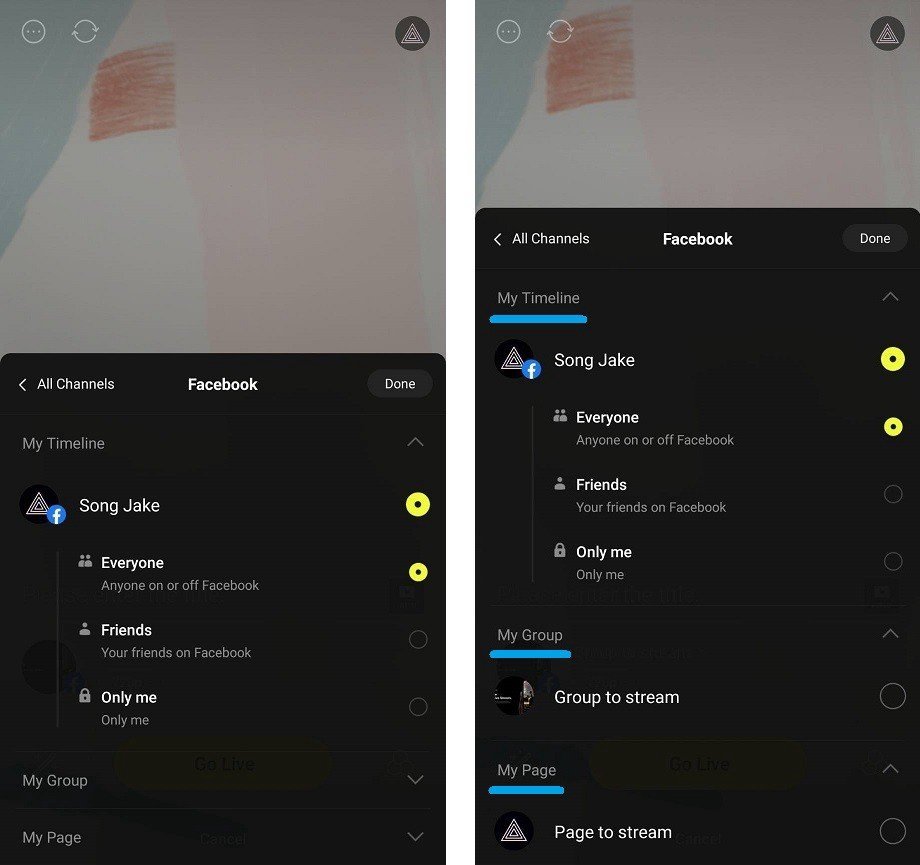
Tab on My page and choose the appropriate page to live stream on
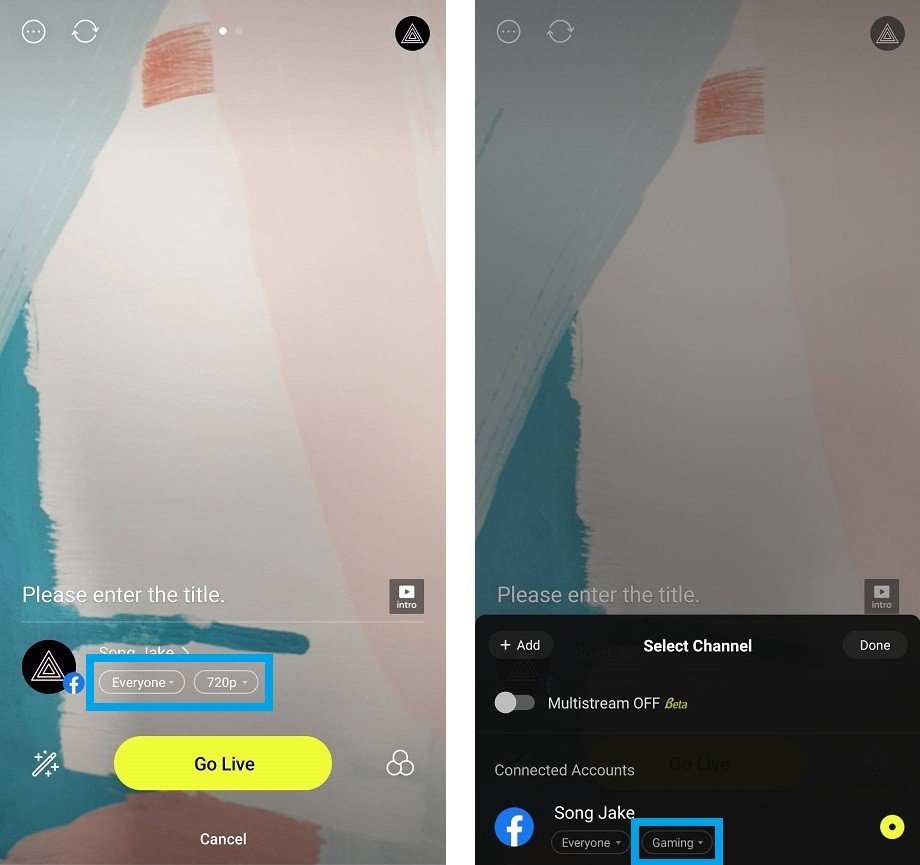
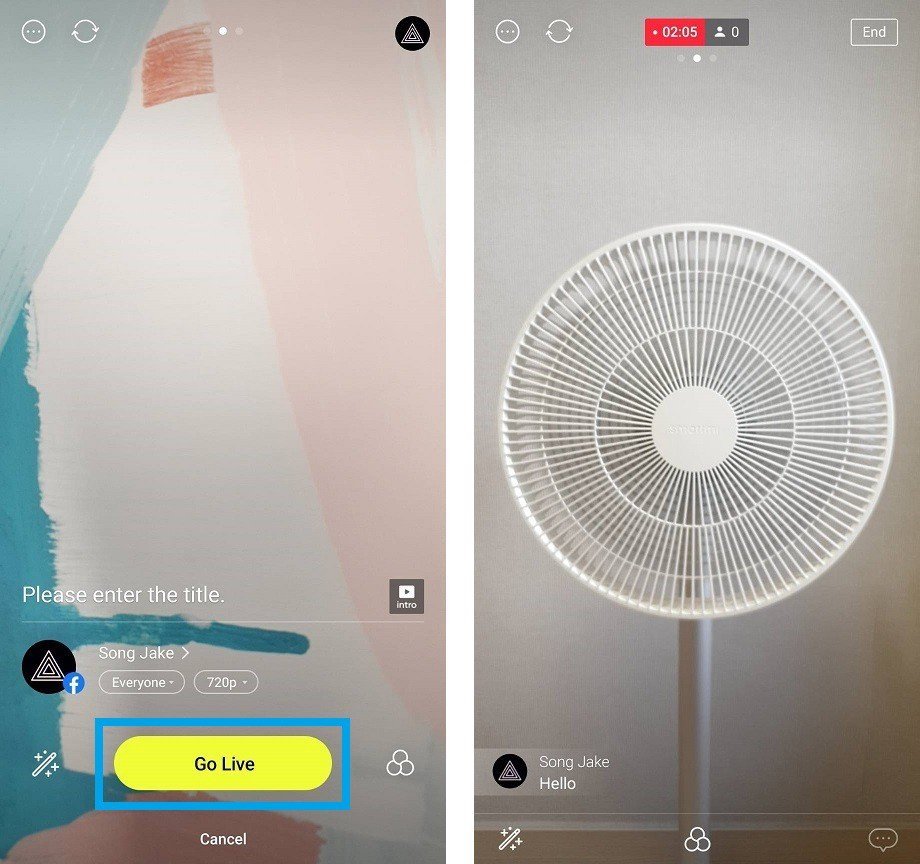
Make sure is set to everyone and you can also set the frame rate of your live stream Then tab Go Live
Your video should be live at this stage and you can confirm that by going to your Facebook page and seeing for your self how it works
When you want to stop the live stream tab on the Prism Live studio logo floating on your screen and then tab the lat icon that opens prism app dashboard then tab End to end the live stream and as soon as the live stream ends you will see an option to save your live stream so it’s left to you to save or just close the app and that’s it.
Hope it’s helpful please like the page if it helped