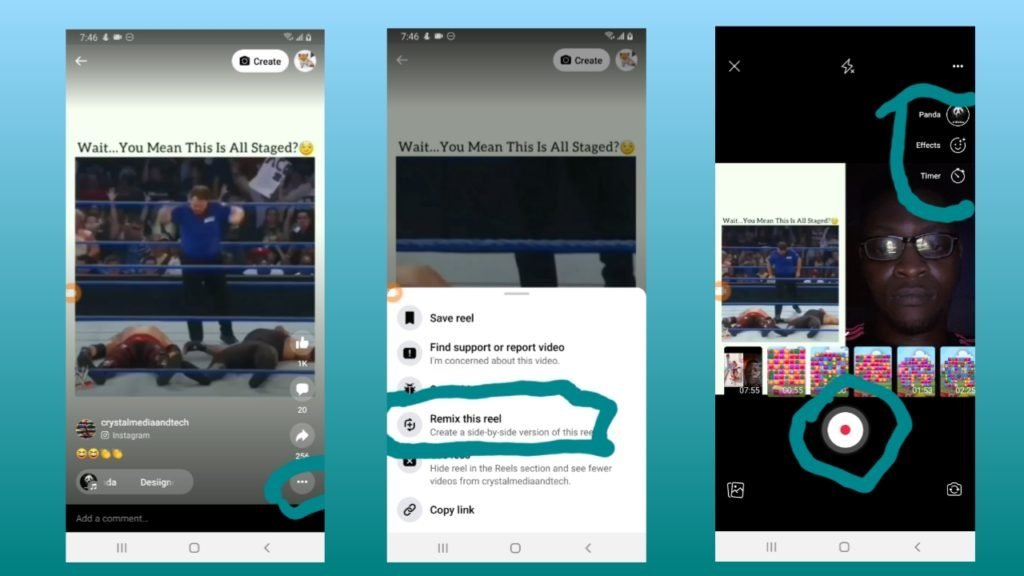
When usinge Reels on facebook app you can also create a remix of a video your watching just in The style of Instagram Reels on Facebook app, although this is not available for every facebook Reels as some people either dont have the options or do not enable it or they might have disabled the option as well.
Remixing a reel on Facebook allows you to create a new reel inspired by someone else’s reel. Your reel will be shown with the original reel. It’ll use the audio from the original reel, unless you replace it with your own original audio. The original reel’s creator will be credited on your reel. As you begin creating your reel, you’ll see the original one side by side with it.
Steps On How to Remix a Reels Video on Facebook App:
Open Facebook App
Goto Reels and short Videos
While Watching Reels Tab on 3 Dot by the Left hand side of the player
Tab Remix This Reel
Thens Start recording the reels video
Tab next when Done and Publish
Note:
A reel’s creator can choose to allow remixes of their reel and can change this at any time. Only reels shared as public can be remixed.
If a reel’s creator deletes their reel or their Facebook account, all remixes of it will be deleted.
If a reel’s creator changes the audience of their reel to an audience other than Public for longer than 24 hours, remixes of that reel will be deleted.
If a reel’s creator disables remixing of their reel, any existing remixes of it will not be deleted. New remixes can’t be created.
Disabling remixing of your reel does not affect your original audio, which anyone can use.
According to MUD make One UI 4.1 is rolling out to Samsung Galaxy phones. Here’s a look at the best features you can expect to see.
Samsung’s One UI is now arguably among the best Android skins in the market, and the company keeps updating the skin regularly with new features and enhancements. Following the release of the Android 12-based One UI 4, the company has released One UI 4.1 with some minor tweaks and improvements.
Below is a look at some of the top new One UI 4.1 features.
1. RAM Plus Improvements
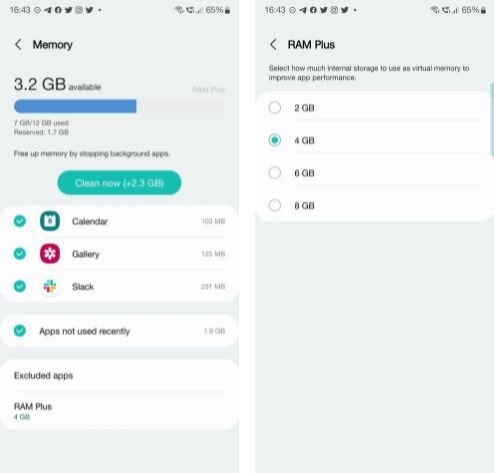
Samsung added the RAM Plus feature to its Galaxy devices with a One UI 4 update. The feature makes it possible to use the built-in storage of a device as virtual RAM. In One UI 4.1, RAM Plus has been improved to allow you to select the virtual RAM size: 2GB, 4GB, 6GB, or 8GB. Previously, there was only a 4GB option.
Samsung claims you can use RAM Plus to improve the smoothness of your phone.
2. Smart Widgets
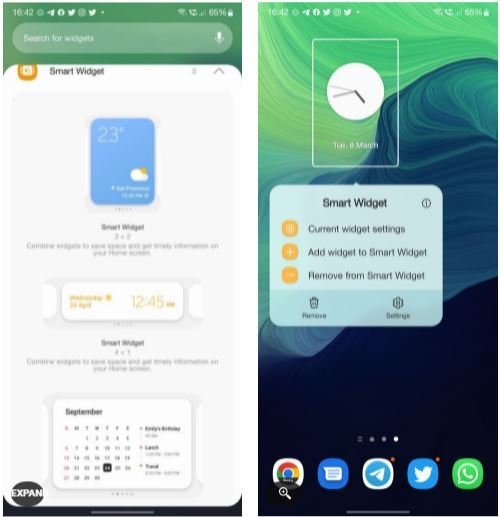
Taking a cue from iOS 14’s Smart Stack widget feature, Samsung has added a widget stacking feature in One UI 4.1 that lets you stack widgets on top of each other. This way, you save space on your home screen and prevent it from getting cluttered with a lot of widgets. You can then circle between them with a left/right swipe.
Do note that Smart Widgets only work with the stock Samsung launcher—the implementation is not compatible with third-party launchers.
3. Tighter OneDrive and Samsung Gallery Integration
One UI 4.1 further improves the integration between Samsung’s Gallery app and Microsoft’s OneDrive cloud service. Your gallery content will be synced across Galaxy devices as long as you are logged into them using your Microsoft account.
In One UI 4, the sync only worked one way, with the gallery content being backed up to OneDrive.
4. Store Your Driver’s License in Samsung Pay
With One UI 4.1, Samsung Pay is becoming more than just a mobile payment service. You can use it to store your driver’s license, boarding passes, car keys, and more.
If you like the sound of this, you can read more on how to set up and use Samsung Pay.
5. Improved Material You Color Palette Picker
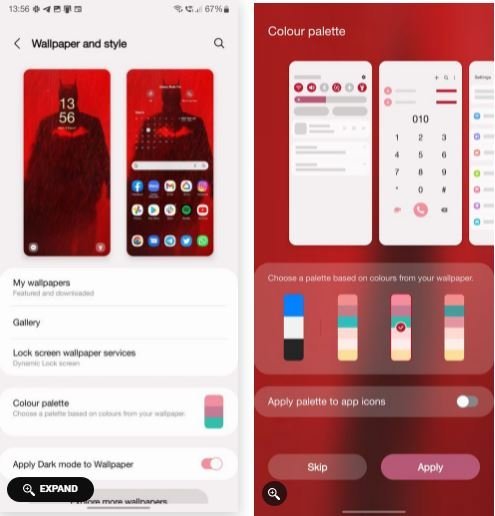
Samsung adopted Material You and Dynamic Theming with One UI 4. With One UI 4.1, the company has tweaked the color palette picker with a new rectangular preview, making it easy to pick the exact color you want for your phone’s interface.
6. A Smarter Calendar
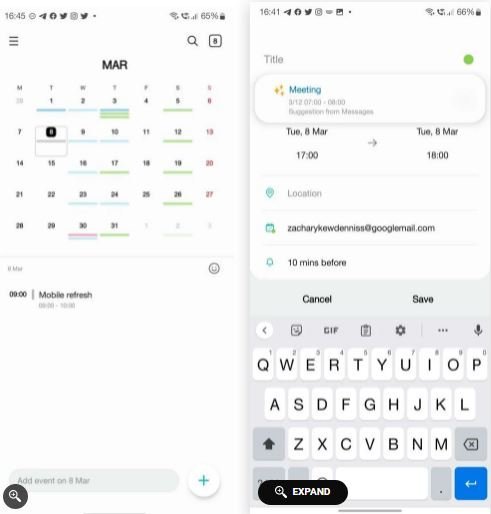
Samsung’s Calendar app is getting smarter in One UI 4.1, courtesy of deeper system integration. It can now automatically read the date and time in messages and allow you to create a new event directly. The feature will also work with third-party apps like WhatsApp, Skype, Messenger, and others.
To use it, you need to open the Samsung Calendar app, tap the + icon, and event suggestions from compatible apps will be automatically shown.
7. Pro Mode Gets Even More Pro
Samsung has long offered a Pro mode in the camera app of its Galaxy phone. However, it has only supported the primary camera so far. One UI 4.1 further expands Pro mode to the other camera sensors. However, since there are a lot of factors at play here, this improvement might not make its way to your phone, depending on what model you have.
8. Night Mode Portraits
Another camera-related improvement in One UI 4.1 is Night mode support while taking Portrait shots. This will allow you to capture more detailed and vibrant portrait shots even in low-light scenarios.
The Portrait mode’s edge detection algorithm itself has also been improved, but it could be limited to the Galaxy S22 series due to the hardware enhancements in those devices.
One UI 4.1 Is a Minor Update
One UI 4.1 might seem short on features, but it is a decent follow-up to One UI 4 that introduced some major usability improvements. While the skin has made its debut on the Galaxy S22 series, it will also make its way to almost all mid-range and premium Galaxy devices eventually.
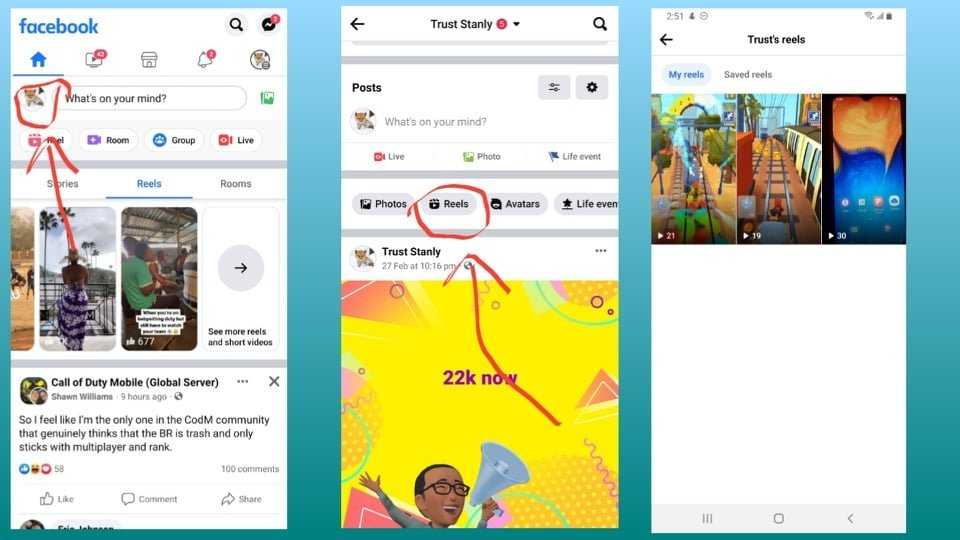
I will show you how to see your uploaded reels video on facebook app, its quite difficult to locate where your created reels are store on facebook app it was even hard for me to find at first but is only there in the open only didnt notice it quickly
Steps to see where your reels are located on Facebook app
Open Facebook app
Goto your profile account on Facebook app
Tab Reels then you can see your reels video there
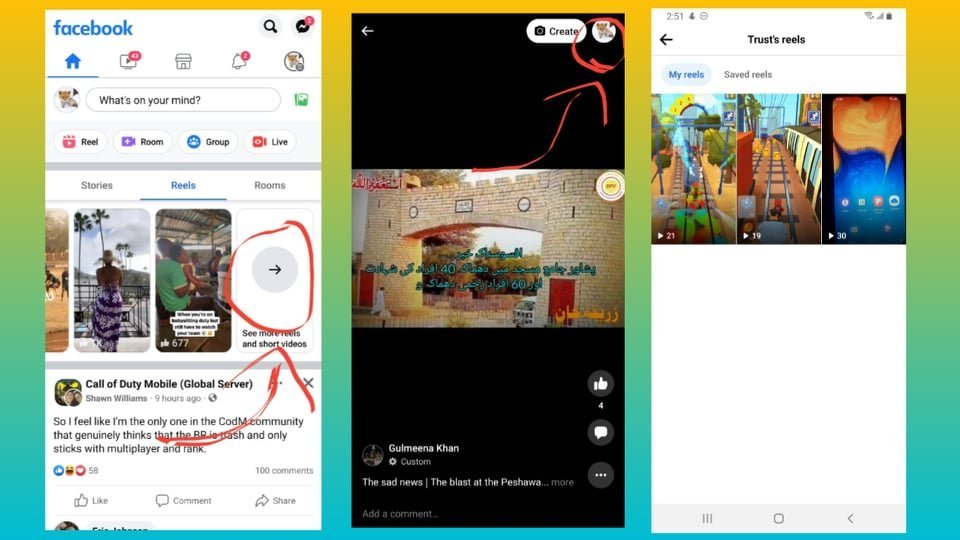
Another method to see your reels on Facebook app
Open Facebook app
Tab on Reels on Facebook home
Scroll to the and Tab See more reels and short videos
Tab your profile icon on Top right
There you go thats your reels video that was uploaded to Facebook app
The notes you create in the Apple Notes app are most likely saved to iCloud or locally on your device. In addition to these options, you can also create and save notes to your Google account from inside the Notes app.
This tutorial shows you how to add your Google or Gmail account to your iPhone, iPad, and Mac and use it as a potential location to store your notes.
Steps on How to Save Your Notes to Gmail on iPhone and iPad
Here are the steps to add your Google account to the iOS or iPadOS Notes app:
Open the Settings and tap Notes.
Tap Accounts.
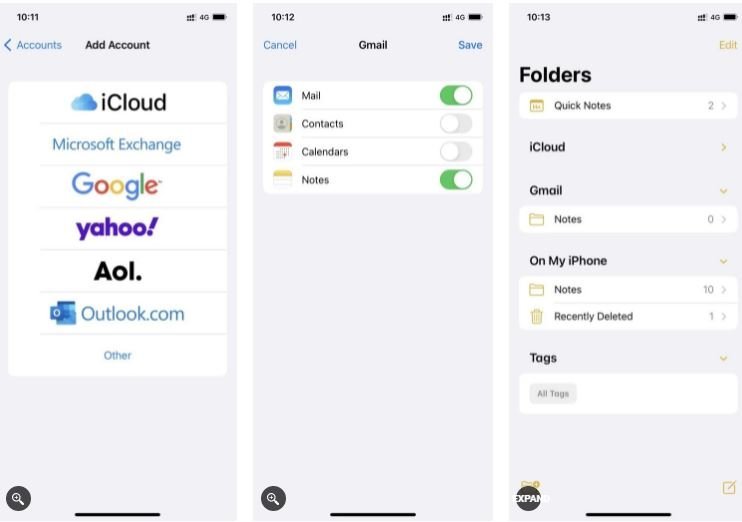
Tap Add Account and, from the list of services, tap Google > Continue. Now, sign in with the Google account you want to use.
After signing in, make sure the toggle for Notes is enabled and tap Save.
Open the Notes app and tap the back button in the top-left corner until you see all your Folders.
Below Gmail, tap Notes and then tap the compose button to create a new note which will be saved to your Google account.
While you can create text and image-based notes in the Gmail section, you can’t add a sketch, checklist, table, or other such extra features of the Notes app. For these, you’ll have to create the note inside iCloud or the local On My iPhone folder.
You can follow the same steps to add other services like Outlook or Yahoo to the iOS Notes app.
Further, you can easily set Google as your default location for all the notes you create inside the Apple Notes app.
How to Save Your Notes to Gmail on Mac
You might want to add the same Google account in the macOS Notes app as this will ensure the notes you create on your iPhone under the Gmail section sync to your Mac as well.
Here’s how to add your Google account to Mac and save notes to it:
Open System Preferences and click Internet Accounts.
If you have already added a Google account, select it from the left sidebar and check Notes. In case a Google account isn’t added, choose Google from the list of services and click Open Browser if prompted to view the sign-in page in Mac’s default web browser. If you don’t see the list of services, click the plus (+) button from the lower left.
Use your Google username and password to complete the sign-in. When it says “macOS wants to access your Google Account,” click Allow.
Now go back to the System Preferences window. From here, you can uncheck Mail, Contacts, and Calendars if desired. But make sure Notes is left checked and click Done.
Open the Notes app and scroll to the bottom of the left sidebar. Here you’ll see the newly added Gmail account. Click Notes to add a new note, which will be saved to your Google account.
Unless you’ve been living under a rock, you’ll have heard or seen a meme online, i dont miss reposting memes to my whatsApp, i dont know why but i enjoy peoples reactions to the meme. But why are they so popular? Here are seven reasons we love them.
In a world dependent upon the internet and with social media as its core, memes are something almost everyone has heard of or seen at some point. This form of media is one of the most significant sources of entertainment on the internet today.
Memes strongly influence different cultures, and people can relate to them easily. So, here we will explore why memes have become so popular and seven reasons people love them so much.
What Are Memes?
Memes are primarily jokes about a situation, condition, person, event, or other cultural or social factors. They tend to go viral through online transmission, where they are replicated, communicated, and shared on social media.
An interesting thing about memes is that they don’t always need a clear rationale to become popular. Some ideas just click with people, and those people participate in sharing the memes until they go viral.
Let’s find out why we love memes so much.
1. Cultural Information Exchange
As humans, we are social beings. We always love to know the sources of our feelings and like to relate to others in our social circle. We all like to be appreciated and want to stand out and gain attention in our society and culture. Memes allow us to do all that.
Memes are funny and contagious units of cultural knowledge. This makes them an easy and fast way of sharing cultural information.
Therefore, whenever you post or share a meme, you essentially share easy-to-digest cultural information with the world. And you get recognition for your ideas in the process.
This convenience of sharing relatable cultural knowledge is a major reason why memes are so popular globally. They let you learn something new in addition to simply enjoying the joke. It’s a win-win situation for you.
2. Source of Collective Coping
It’s common for certain events, happenings, or behaviors to hit the global community or a cultural group as a whole. We all feel the same emotions, tensions, and stress in such situations, making our feelings mutual.
Memes are one of the best ways through which people in a cultural group can cope with any stressor or tension arousing from a situation. The reason why memes have become so popular is that they help people cope collectively.
When a stressor is converted into a funny meme, most people can relate to it, talk about it, and feel that they are not alone in that situation. This makes the stressor less painful and easy to cope with.
3. Different Perspective of a Stressful Event
Memes play another interesting role that makes them go viral. They make you see the other side of the picture, offering a new perspective to a situation and helping you see things from a different angle.
This change of perspective makes people change how they see a stressful situation. Memes do all this pretty efficiently and effectively. They are a source of humorous enlightenment for people.
Another interesting thing to note about this type of media is that it brings all this positivity through the efforts of the ordinary people, or memers as they are called. The main intention of these memers is to create a viral meme. And in that process, they explore different perspectives, unintentionally bringing forth positivity.
4. New Form of Communication Medium
In the internet era, the world has shrunk to a global village. We can all communicate with each other through different social media platforms.
Memes take this communication to the next level. You receive and share memes all the time through images, texts, GIFs, or short videos.
This ability to embellish communication has made memes a preferred mode for sharing funny messages in unique ways. The multiple sensory messages in a meme help make it go viral.
People of all age groups and literacy levels can easily relate to these images and videos. This quality makes memes an effective medium for communication.
5. Humorous Interpretation to Reduce Stress
Memes can make you laugh out loud. This is the best thing they do. Through memes, you interpret a generally stressful or anxiety-evoking situation in such a way that makes it humorous and fun. And this reduces the stress levels in society.
General memes add humor to a situation, leading to lower stress, easier acceptance, and less anger. The humor helps you relax. And, to be honest, all of us want stress reduction and more fun and happiness in our already busy and stressful lives.
6. Mood Improvement
Our lives and schedules are pretty hectic nowadays. Moreover, certain life events can dampen our moods.
So, it is natural to seek ways of uplifting yourself. Different people use different things to enhance their mood like playing games, watching TV, talking to a family member, and so on. And this is where memes play an important role.
Memes are a medium that you can use for mood enhancement. When you see a comic image or video, your brain immediately starts secreting happy hormones like endorphins and oxytocin that make you feel better.
This significant role in mood improvement is another reason which makes memes so popular. Many people use them to get away from the tensions of daily life to feel relaxed and happier.
7. Shareability
As mentioned before, human beings are social animals. We instinctively want to share our emotions and relate with others.
We generally love sharing, understanding others, and being understood. This is what makes memes so likable. You can share them with a group, and everyone understands the intended message easily.
The shareability of memes makes them popular in a cultural group or even globally because most people find them relatable. This shareability also brings people together by discussing a situation, person, event, or happening that affects all of them mutually.
Moreover, shareability makes people feel relaxed as they understand that a particular situation or event is common for most of those around them. This feeling of not being alone is another reason for loving memes so much.
Memes Are a Highlight of Digital World
So, now you know why memes are so popular and why most people like them so much. They make you see the humorous side of a stressful situation, help in global communication and cultural exchange, and lead to collective coping.
Further, the memes enhance mood and can be shared widely, making them even more popular. All of these qualities associated with memes make them viral and loved. They are one of the best perks of this global digital village of ours.
Windows 11’s new Narrator has some excellent customizability, down to configuring how it talks.
The Windows Narrator has been around as an essential accessibility feature for a long time. It helps users navigate web pages, Windows apps, and more by reading the text on the screen.
Since the release of Windows 11, many accessibility features have received significant upgrades. New features (such as more natural voices) make Narrator more powerful and customizable on Windows 11.
Read on as we discuss all you need to know about setting up and using the Windows 11 Narrator.
Set Up Narrator on Windows 11
Similar to other accessibility tools, you can configure the Narrator to launch automatically before or after signing into Windows or through a dedicated keyboard shortcut.
To set up how Narrator starts on your system:
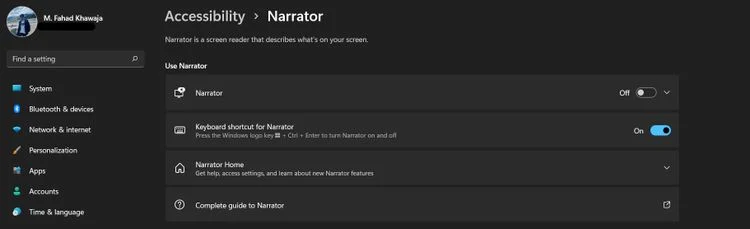
Launch the Settings app from the Start menu, and select Accessibility from the sidebar.
Under Vision, click on the Narrator tab.
To enable Narrator immediately, turn on the Narrator toggle button.
If you want to automatically set up Narrator to start before or after sign-in, then expand the Narrator tab and select the required options.
To enable the Narrator shortcut key (Win + Ctrl + Enter), enable the Keyboard shortcut for Narrator toggle button.
Similarly, you can set up Narrator Home to launch automatically as well.
How to Change the Narrator’s Voice on Windows 11
Windows 11 provides a lot of flexibility in customizing the Narrator’s voice to your preference. You can choose from several different voices to adjust the narration speed, pitch, volume, and more.
To change the Narrator voice settings on Windows 11:
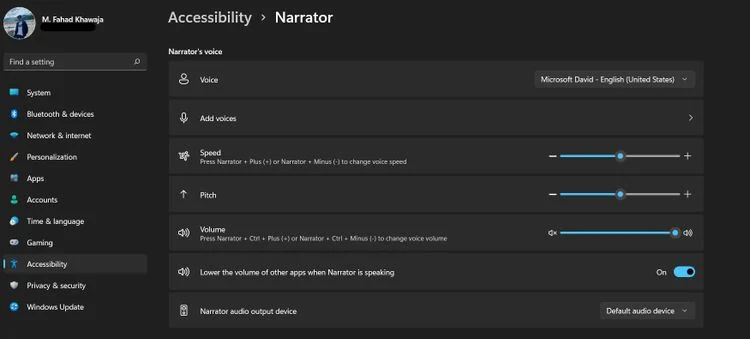
Navigate to Settings > Accessibility > Narrator.
Select the Voice dropdown and choose your preferred Microsoft voice to change the Narrator’s voice.
Alternatively, you can also add a different voice through the Add voices tab. Select Add voices from the Speech settings page and choose a language package.
You can adjust the narration’s Speed, Pitch, and Volume of the narration from their respective control sliders.
If you want to change the default narration output device, connect your output device to your PC and select the device from the Narrator audio output device dropdown box.
How to Configure Narrator Speech on Windows 11
In addition to adjusting the Narrator’s voice, you can also change the wordiness or verbosity of the Windows 11 Narrator. This essentially means how much detail the Narrator provides while screen reading.
Here’s how you can adjust the verbosity of the Windows Narrator:
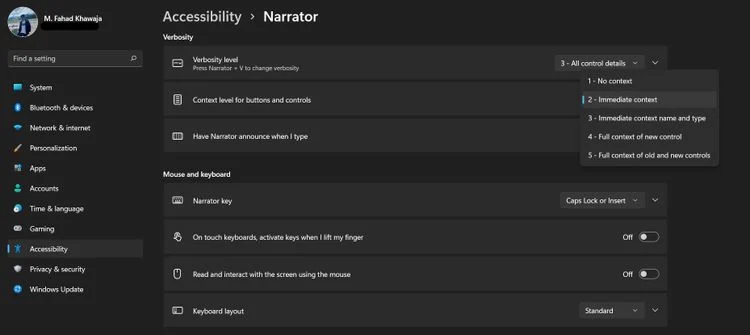
Launch the Settings app and navigate to Accessibility > Narrator.
Select the Verbosity level dropdown, and choose the required narration detail level.
Similarly, you can also decide how much detail the Narrator provides when you interact with buttons or controls through the Context level for buttons and controls dropdown box.
If you want the Narrator to alert you every time you press a keyboard key, you can enable the feature by expanding the Have Narrator announce when I type tab. Windows allows you to choose to enable this feature for a specific key group (letters, numbers, function keys, etc.). You can select your preferences by selecting the required options.
Advanced Narrator Settings
Apart from how Narrator sounds, Windows 11 lets you configure advanced Narrator settings. This includes customizing how the Narrator cursor appears, integrating a braille display, and choosing how your data is managed.
You can easily manage these settings through the same Narrator settings page.
Narrator Becomes More Natural
Windows 11 has now begun support for natural Narrator voices. Thanks to the Insider update, users can now experience web browsing, reading, and mail authoring in a more realistic manner.
While the update is currently restricted to Windows Insiders, we’re optimistic that Microsoft will soon begin supporting all Windows 11 devices with additional languages.
Shiba Inu is relatively new versus Dogecoin, but many refer to the same in the same breath. So, what’s the difference?
While many coins within the crypto world are created in a serious light, some have a more jovial background. These are known as meme coins, and two of the most well-known examples are Dogecoin and Shiba Inu. You may have heard of Dogecoin, as it’s incredibly popular. But what exactly is Shiba Inu, and is it similar to Dogecoin in any way?
What Is Shiba Inu (SHIB)?
Shiba Inu was created on the Ethereum blockchain in August 2020. Unlike Dogecoin, Shiba Inu’s creator is entirely anonymous and goes by the name “Ryoshi.” It is not even known whether the token was created by an individual or a group. Shiba Inu’s initial purpose was to become the “Dogecoin killer,” though it is also thought that this was meant as a joke, and Shiba Inu stood to mock Dogecoin rather than seriously compete with it.
The Shiba Inu ecosystem consists of three separate tokens: SHIB, LEASH, and BONE. While LEASH is fairly limited in supply, with only 107,000 tokens in circulation, BONE, the ecosystem’s governance token, is much more widely available, with around 250,000,000 tokens in circulation at the moment.
On the other hand, there are currently trillions of Shiba Inu tokens in circulation, and it is this crypto that remains to be the project’s “foundational currency.” However, in May 2021, the token’s creator (or creators) sent half of the tokens to Ethereum’s founder, Vitalik Buterin, and Buterin decided to burn (and therefore destroy) 90% of his tokens and donate the rest.
In July 2021, Shiba Inu’s developers also launched a crypto exchange, ShibaSwap, which offers liquidity pools, token swapping, governance, and staking options. There is even a Shiba Inu-backed NFT marketplace, named Shiboshis, which features a collection of 10,000 Shiba Inu avatars.
When Shiba Inu was initially created and began to gain more backing, exchanges had to decide whether it was a good idea to list it as a tradeable token. As the token’s market cap grew, it became a no-brainer. Today, Shiba Inu is available on a wide range of popular decentralized exchanges, including Kraken, Coinbase, and Binance.
So, now that we’ve broken down what Shiba Inu is and what it offers, let’s get into how it is different, or similar, to Dogecoin.
Shiba Inu (SHIB) vs. Dogecoin (DOGE): What’s The Difference?
There is one key fundamental difference between Shiba Inu and Dogecoin. While Dogecoin is a coin, Shiba Inu is a token. This is because Dogecoin has its own blockchain, while Shiba Inu was developed on the Ethereum blockchain, so it is known as a token, not a coin.
Because Shiba Inu exists on the Ethereum blockchain, it supports smart contracts, making Shiba Inu transactions even more secure and unchangeable. Dogecoin, however, does not support smart contracts, but there has been some talk about the possibility of smart contract adaption over the past year.
Additionally, the two consensus mechanisms used by Dogecoin and Shiba Inu are different. Like Bitcoin, Dogecoin uses the Proof of Work (or PoW) mechanism, which involves the expenditure of computing power to prevent the network from being compromised.
Shiba Inu, on the other hand, uses the Proof of Stake (or PoS) mechanism. This involves validators, who lock away a certain amount of crypto while they validate blocks to make the network secure and transparent. Because of this Shiba Inu can be staked by users, either individually or in pools, while Dogecoin cannot.
The final key difference between Dogecoin and Shiba Inu is their value, which differs drastically. While both Dogecoin and Shiba Inu are worth below 1 USD, Dogecoin is still many times more valuable than Shiba Inu, by around five thousand times, in fact. Shiba Inu is still very, very far away from reaching the dollar mark in value, while one Dogecoin is currently worth eleven US cents, or $0.11. But these prices are constantly changing, and there’s no knowing when either crypto will see a hike or crash.
Dogecoin and Shiba Inu Are Both Solid Cryptos Though Dogecoin and Shiba Inu differ in many ways, they both have some great features and seem to hold a promising future within the cryptocurrency industry. So, check them out if you’re interested in learning about, or even investing in one of these meme coins. They’re certainly more than a joke at this point!
1. Prioritize your needs. Start each budget period by paying for your needs. This should include your rent or mortgage, utility bills, insurance, gas, groceries, recurring medical expenses, and any other expenses you may have. Do not put any money toward non-essential expenses until all of your necessary living costs have been paid.
2. Shop around. It can be easy to get in the habit of shopping in the same place repeatedly, but taking time to shop around can help you find the best deals. Check in stores and online to look for the best prices for your needs. Look for stores that might be running sales or that specialize in discount or surplus merchandise.
• Bulk stores can be useful for buying things you use a lot or things that don’t expire, such as cleaning supplies.
3. Buy clothes and shoes out-of-season. New styles of clothing, shoes, and accessories generally come out seasonally. Shopping out-of-season can help you find better prices on fashion items. Shopping online is particularly useful for out-of-season clothes, as not all stores will have non-seasonal items.
4. Use cash instead of cards. For non-necessary expenses such as going out to eat or seeing a movie, set a budget. Withdraw the necessary amount of cash before you go out, and leave your cards at home. This will make it more difficult to overspend or impulse buy while you’re out.
5. Monitor your spending. Ultimately, as long as you’re not spending more than you bring in, you’re on target. Regularly monitor your spending in whatever way works best for you. You may prefer to check your bank account every day, or you could sign up for a money-monitoring app such as Mint, Dollarbird, or BillGuard to help you track your spending.
Instagram Direct Messenger offers various features such as audio and video calling, Vanish Mode to send disappearing messages, custom reactions, and chat themes. Besides, you can send voice messages, see the timestamp, reply to specific messages, or send a silent message without notification. That said, until now, there was no option to search or filter within Instagram Direct Messages. This was a big limitation as people had no way to find a particular phrase or word in a chat on Instagram.
Finally Instagram allows users to find messages by searching a chat conversation. The app now includes a new ‘Search in conversation’ feature to easily search words in Instagram chats like WhatsApp and Messenger. Apparently, the ability to search for a particular message on Instagram DM is currently available only for iPhone. I feel Android users should be getting it soon.
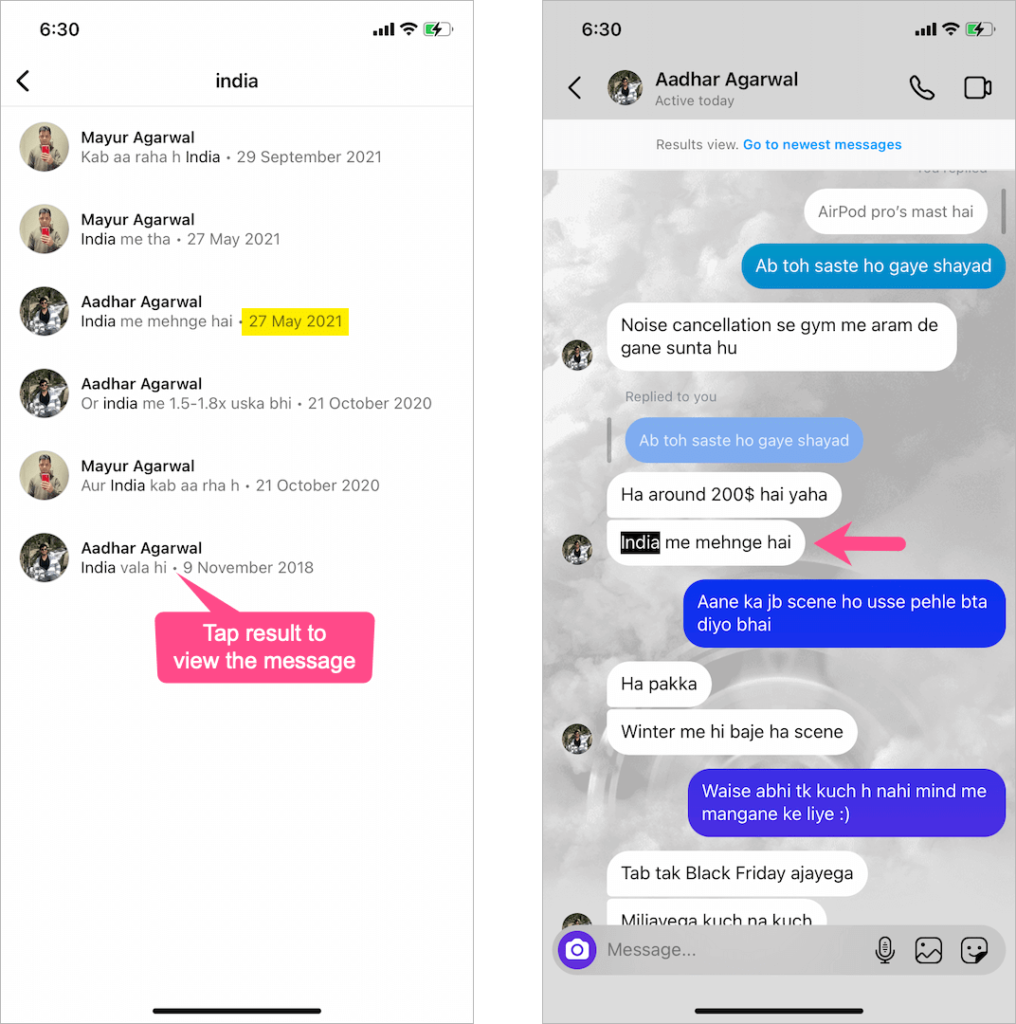
When you search for a message on Instagram DM, the message date is also shown, and tapping the search result takes you to its original place in the chat.
Now let’s see how you can search Instagram messages for keywords on iPhone.
• Make sure to update Instagram to the latest version.
How to search for a specific message on Instagram 2022
1. Make sure to update Instagram to the latest version.
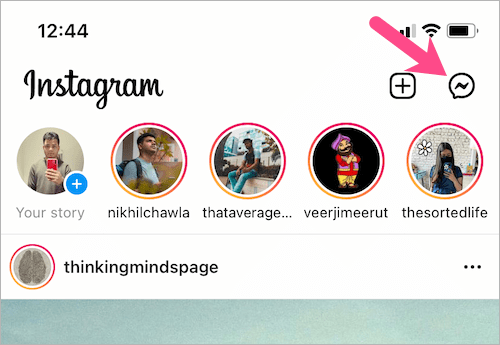
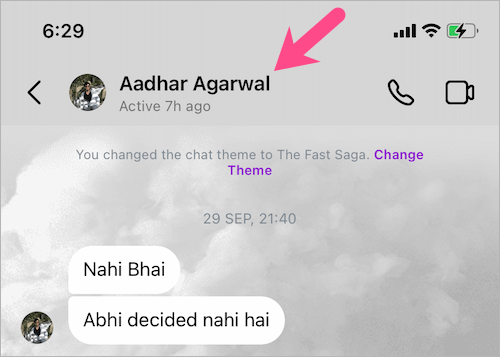
2. Tap the Messenger icon at the top-right corner of the ‘Home’ tab.
3. Open an individual conversation or group chat.
4. Tap the person’s name at the top.
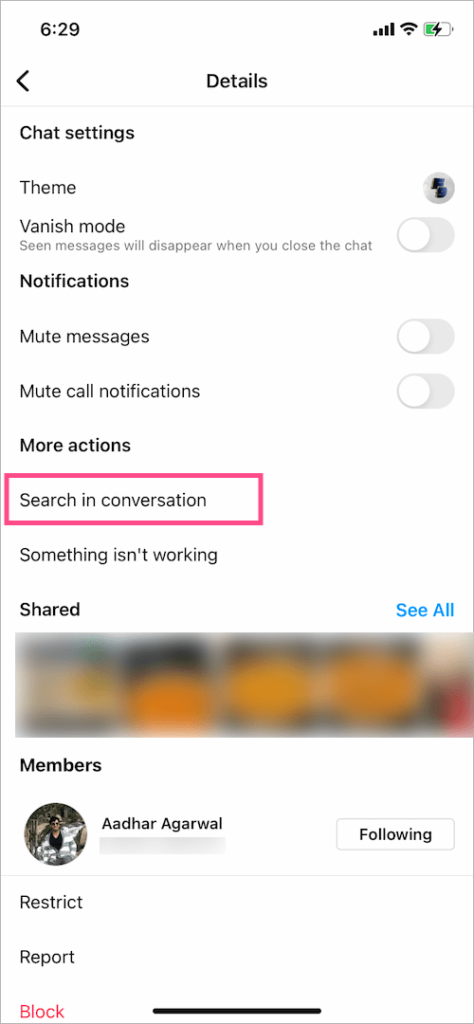
5. Under More actions, tap on “Search in conversation” to search text in Instagram chat.
6. All the chat messages containing your search term will appear in reverse chronological order.
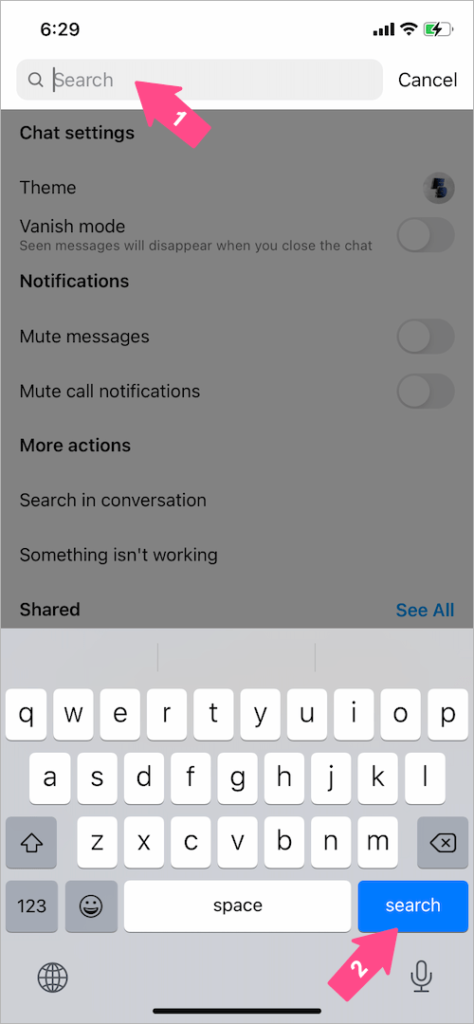
7. To search for words in Instagram messages, type a word or keyword in the search box at the top and tap the ‘search’ button.
8. Tap a search result to view the specific message within the chat conversation. The search term will also be highlighted.
Quick note: this is only available for iPhone as of the time of publishing.
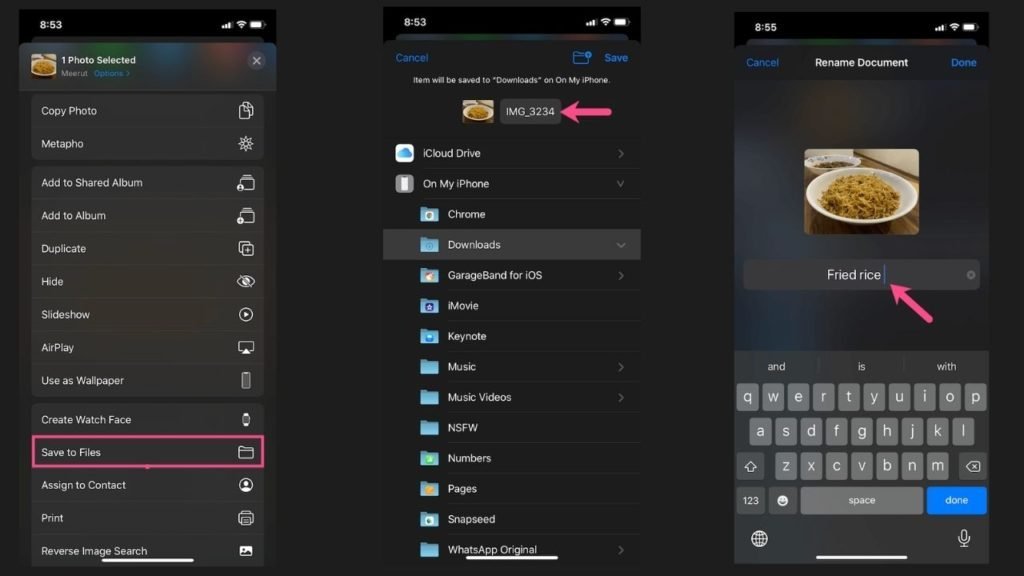
Trying to change a pictures name in Iphone and dont know exactly how to do it then that what this article is all about, usuaally when an image is taken or downloaded is saved as IMG_03 or some numbers in front of IMG_ so depending on what your doing you might want to change the name or make it unique so that it can easily be use on the purpose its made for so if that is what you want keep reading.
Steps to renaming photos in Iphone
Go to Photos and open a picture.
Tap on Share, scroll down and tap “Save to Files”.
Tap “On My iPhone” and select a folder.
To rename the image, tap the file name next to the image thumbnail and enter a name.
Tap Done and then tap Save at the top-right to save the image to the Files app.