
الرئيسية بلوق الصفحة 25

Russia Blocks Google In Response Fake Information To The War In Ukraine

0

According to Reuters: Russia’s communications regulator has blocked the news aggregator service of Alphabet Inc’s (GOOGL.O) Google, accusing it of allowing access to what it calls fake material about the country’s military operation in Ukraine, Interfax news agency said on Wednesday.

“We’ve confirmed that some people are having difficulty accessing the Google News app and website in Russia and that this is not due to any technical issues on our end,” Google said in statement.

“We’ve worked hard to keep information services like News accessible to people in Russia for as long as possible.”

Interfax said Roskomnadzor, the regulator, had acted on a request from the office of Russia’s prosecutor general.

“The American online news resource in question provided access to numerous publications and materials containing inauthentic and publicly important information about the course of the special military operation on the territory of Ukraine,” Interfax quoted the regulator as saying.

A new Russian law makes it illegal to report any event that could discredit the Russian military.

Google announced this morning that it is “blocking access to YouTube channels associated with Russian state-funded media globally. This was originally just a measure in Europe, and is in the process of rolling out. YouTube is additionally “removing content about Russia’s invasion in Ukraine that violates” its policy of “denying, minimizing or trivializing well-documented violent events.”

Since our last update, our teams have now removed more than 1,000 channels and over 15,000 videos for violating not only our hate speech policy, but also our policies around misinformation, graphic content and more.

Outside of the video service, Google has “paused the vast majority of our commercial activities in Russia.” This includes ads on its properties and networks globally for all Russian-based advertisers, new Google Cloud sign-ups, payments functionality for services (as seen with the Play Store), and monetization features for YouTube viewers in Russia.

That said, its major consumer services are still operating in Russia, with the government making no move to block services:

We can confirm that our free services such as Search, Gmail and YouTube are still operating in Russia. We will continue to closely monitor developments.

Google is in the processing of rolling out air raid alerts directly into Android.

Google has blocked (via Reuters) Android apps connected to RT and Sputnik from the Play Store in Europe. The company, according to BuzzFeed, has similarly blocked user-generated Google Maps content from within Russia, Ukraine, and Belarus “out of an abundance of caution.” This includes photos, business information, and other tags following reports on social media that have not been confirmed:

Across social media platforms on Tuesday, people accused Google Maps of hosting content allegedly used to target airstrikes on cities such as Kyiv and Kharkiv.

Citing sanctions, YouTube this morning “paus[ed] a number of channels’ ability to monetize” videos with ads, while also “significantly limiting recommendations to these channels.” This covers the state-owned RT and other Russian channels (via Reuters). Additionally:

And in response to a government request, we’ve restricted access to RT and a number of other channels in Ukraine. We will continue to monitor new developments and may take further actions.

In a Twitter thread by Google Europe this afternoon, the company announced that it “automatically increased account security protections for people in the region and will continue to do so as cyber threats evolve.” This could include enabling 2-Step Verification (2FA) for more users like it has already been doing independently in recent months. 

Google reminds people that they can manually enable measures to make account takeovers harder and that the Advanced Protection Program is available for “individuals and orgs in high risk environments.” YouTube also encouraged creators last night to enable 2FA.

The company shared that a “number of websites in Ukraine have opted into” Project Shield’s protections against DDoS attacks related to the conflict. The service is free for those eligible and primarily meant for defending news and human rights sites that are critical for spreading essential information.

On that front, the company reiterated that Search has “crisis” measures in place to “surface reliable, timely information.” YouTube is said to be “prominently surfacing videos from trusted news sources and working hard to remove content that violates our policies.” This includes removing hundreds of channels and thousands of videos that violate misinformation policies “over the last few days.”

Google said it is “blocking ads related to this crisis that seek to take advantage of the situation” as there are calls to block or demonetize RT’s channel. 

Google.org has launched a matching program so that employees can donate to UNHCR, Polish Center for International Aid, International Red Cross Societies, and other humanitarian organizations. Google does not have any offices in Ukraine, but it has two locations in neighboring Poland.

How To Get Your Digital Life Under Control With These Apps

0

Smartphone makes it easy to get things done. From paying your bills to ordering groceries, and swiftly get tasks completed quickly. Even with enormous advantages of Smartphones there are still alot of distractions while using the social media apps like TikTok, Instagram and more, If you’re like many people, however, you may be concerned about the amount of time you’re spending on your phone. Luckily, there are some excellent apps that can help you find a little balance. Here are our favorite apps to help you reduce screen time and reclaim your life.

Digital Wellbeing

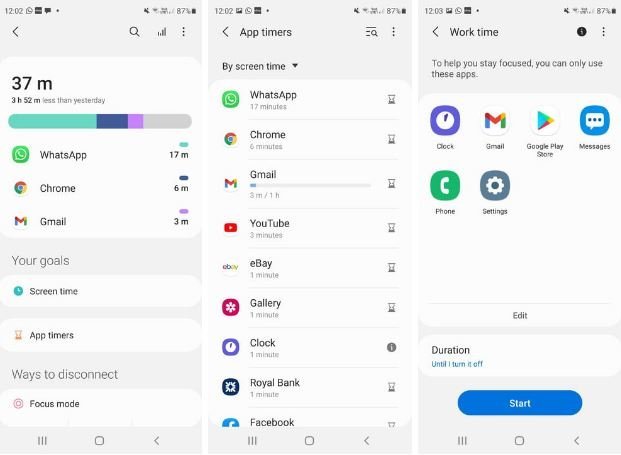
We’ll start with the in-built screen time tracker and limiter for Android. Digital Wellbeing is already installed on your Android phone, and as it turns out, it’s a fairly effective and simple way of beating phone addiction and stopping you from scrolling through Facebook every few minutes when you should be working.

To access it, just go to Settings > Digital Wellbeing and parental controls and tap App timers under Your goals. From here, you can click the Egg timer icon to the right of each app to add your own timer. You can also tap on Work time or Me time under Focus mode to set up apps you’re able to use during these times — for example, you might allow yourself to use only Gmail and Microsoft Teams during Work Time. You can also set the duration of your Work Time for a set amount of time or until you turn it off. By tapping Screen time under Your goals, you can see the stats for your usage of various apps — helpful for breaking the addiction cycle.

iOS Screen Time

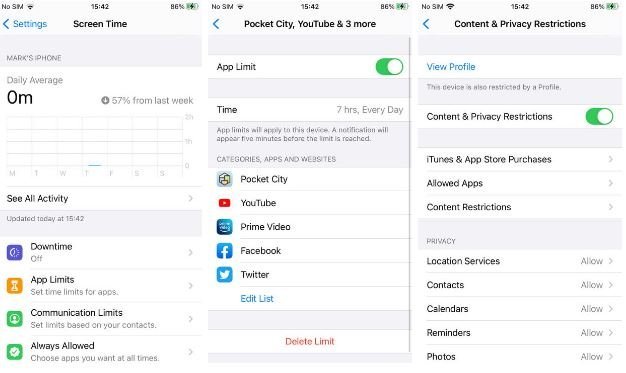
Apple’s in-built screen-time-limiting app is an excellent way to track your screen time without downloading any other apps. Built into iOS (and iPadOS), you can access it by going to Settings > Screen time. From here, you can set usage limits for all your apps and also schedule Downtime, as well as set which apps you want to allow at all times.

You can also access graphs and stats of your screen time on a daily and weekly basis, so you can see how much more or less time you’ve spent on your phone. Screen Time breaks down your app usage into categories like games, social media, etc., so you can quickly see where your time is going and adjust your usage limits accordingly. Screen Time is linked to your iCloud account, so if you toggle on the Share across devices option in the Screen Time menu, you’ll be able to see how you use apps across all your Apple devices.

Social Fever

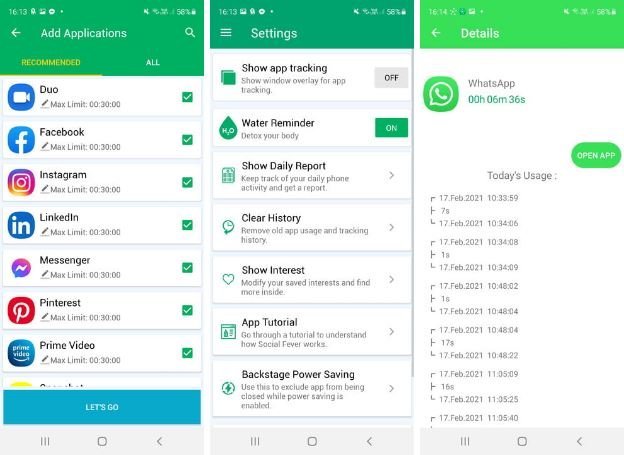
If you need a little help managing your time and beating smartphone addiction, Social Fever can help. Its simple interface shows you at a glance how much time you’re spending on various apps including social media. You can easily set timers to notify you when you’ve exceeded your limits — and it’s quick and easy to get started with no need to set up an account. Just install Social Fever, then add the apps you want to track.

Freedom

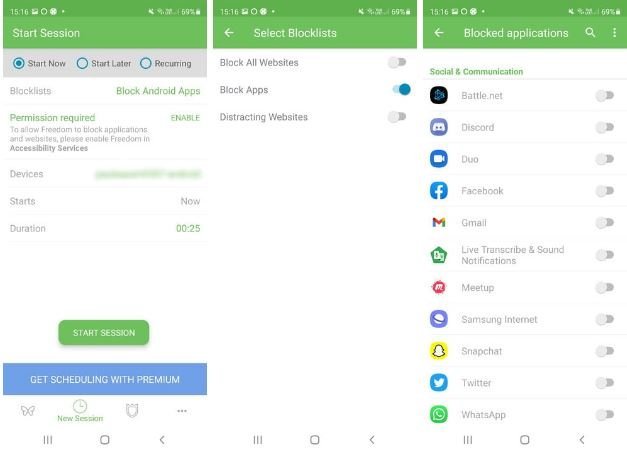
Freedom is used by over two million people worldwide and allows you to create blocklists and schedule time away from the apps that may be most distracting. Whether you want to focus on studying, get your work done, or just break a bad phone habit, the app can help. Just select the websites and apps you want to block to start your session, and Freedom will prevent you from opening them.

There’s a Freedom app for both iOS and Android as well as Mac, Windows, Chromebook, and Linux, so it’s easy to create custom blocklists for all of your devices. While Freedom offers a free trial period, a subscription of $39.99 per year is required to access all of its features.

Space

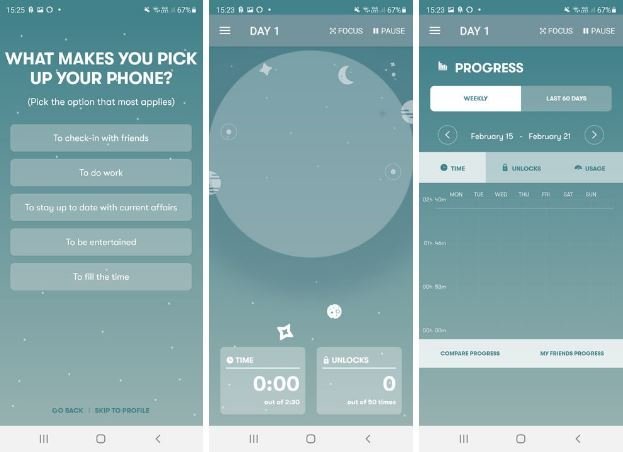
Space is a little different than many other screen time apps. Space helps you set goals to be more mindful of your screen usage. When you install Space, you’ll complete a short questionnaire about your smartphone habits and then select a user type that is your best match. The app then sets goals for screen unlocking and time use, sends notifications as screen time increases, and rewards you with different achievement badges when you meet your daily goals — and you can compare your progress with friends and family, too. There’s even an eight-day Phone/Life Balance course that’s packed with relatable and informative research and recommendations to help you balance your phone use with the rest of your life in a more healthy way — something we could all benefit from.

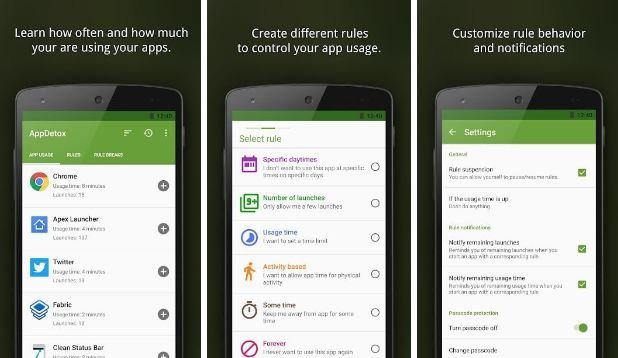
AppDetox

AppDetox allows you to easily create rules to limit access to certain apps. The usual schedule and time-based limitations are available, as well as an option that requires to you walk to earn screen time. AppDetox is one of the few apps that provides a Forever option for apps that cannot be deleted from your phone — and it’s also handy for parents to use to control kids’ screen time.

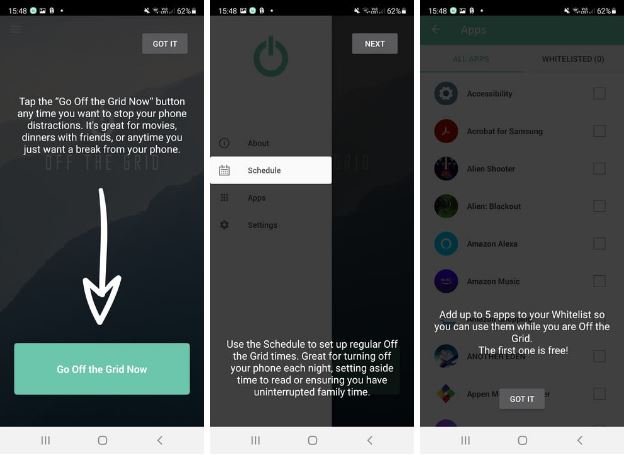
Off the Grid

For those who truly have a problem staying off their phone, Off the Grid may be for you. Off the Grid completely blocks your phone for a set length of time that you determine. You can schedule your Off the Grid time — for example, if you want to stop using your phone after 8 p.m. every night. You can even set custom auto-reply messages to let friends and family know why you’re not responding, and choose to allow calls in case somebody needs to reach you urgently. While you’re off the grid, you can still access the camera app, handy in case you need to capture a special moment or snap a selfie.

Hope this is helpful, please like and share

How To Save Facebook Reels Videos Without Downloading it

0

I will teach you how to Save Facebook Reels Video without, this is not going to download the Video to your device and if that is what you want please check this article instead: How To Download Facebook Reels Video

Here is the steps on How to save facebook Reel:

  1. Open Facebook App
  2. Goto Reels Section and start playing a Reels video
  3. Tab the Three Dot on the Bottom Right
  4. Tab Save Reel
  5. The video reels was successfully saved to your reels section on facebook

If you want to know how to locat the Saved Reel follow the steps below

  1. Goto to Facebook Profile area
  2. Scroll dow till you see Reels
  3. Tab Saved Reels

Hope the Article is helpful

All New Features I’m Android 13

1

Ahead of the first beta in April, Android 13 DP2 remains focussed on developers. With that in mind, we’re diving into today’s release of Developer Preview 2 to find what’s changed.

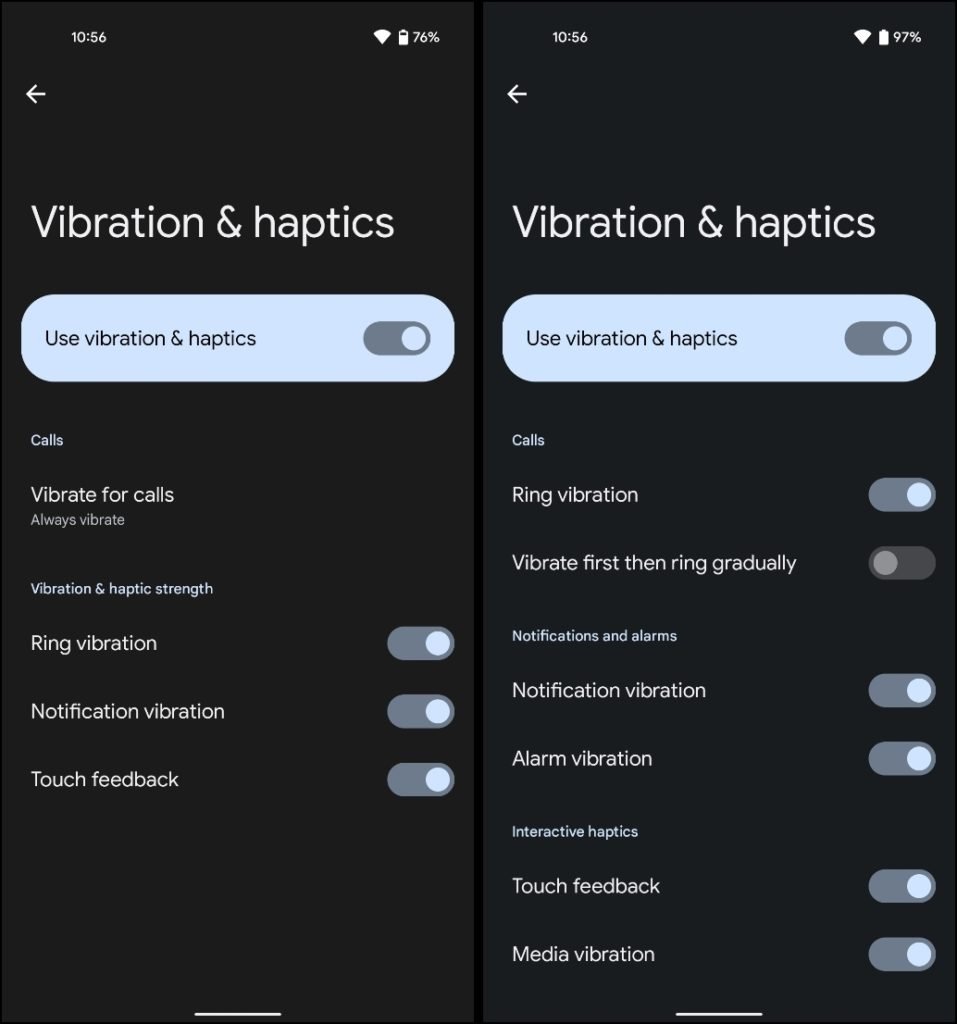
Over the coming hours, we’ll dive into all of Android 13 DP2’s new features and every single change. (The newest updates will be at the top of this list. Be sure to check back often and tell us what you find in the comments below. Additionally, in comparisons, DP1 screenshots appear at the left and DP2 to the right.)

Google is planning six milestone releases over the coming months before the consumer launch later this year to Pixel phones and other devices.

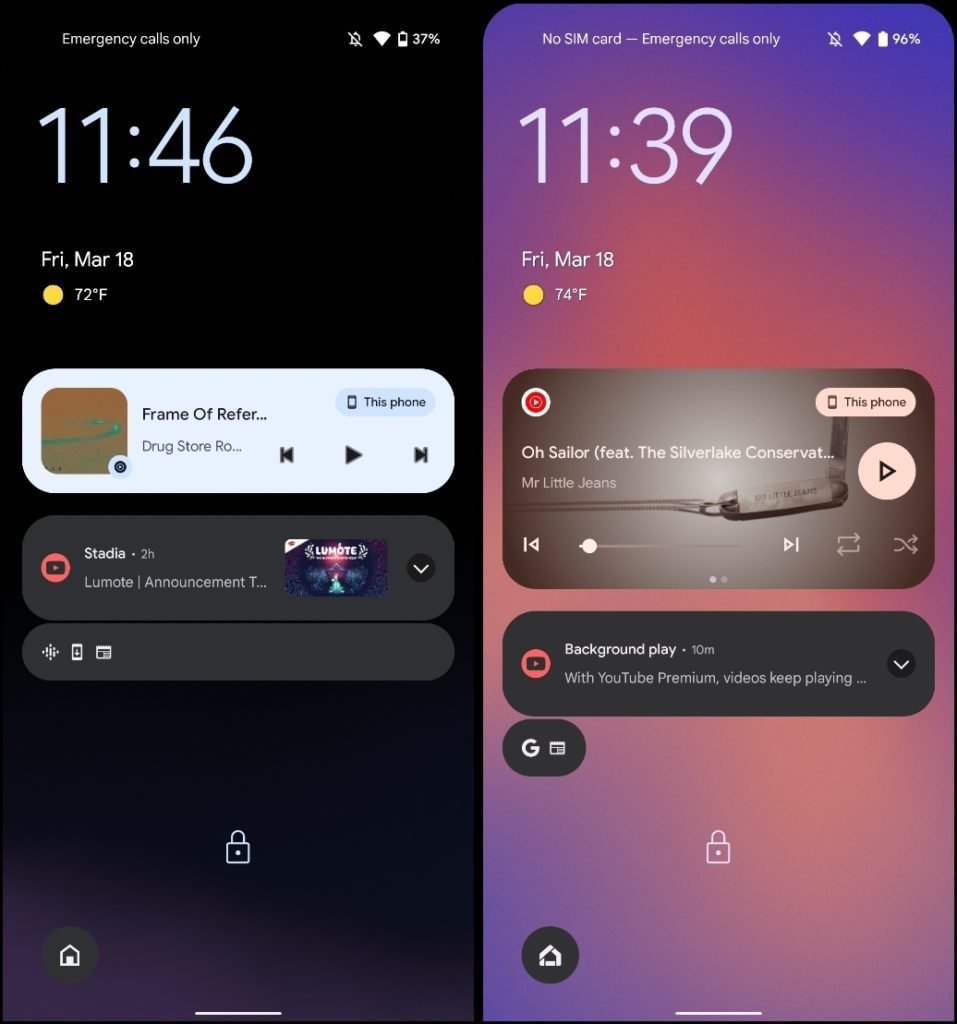
Overflow lockscreen notifications housed in short pill

Hold & drag notification to split screen

If you have no apps open, it launches in fullscreen

Vibration settings: Redesign + additional options

New: Alarm vibration, Media vibration

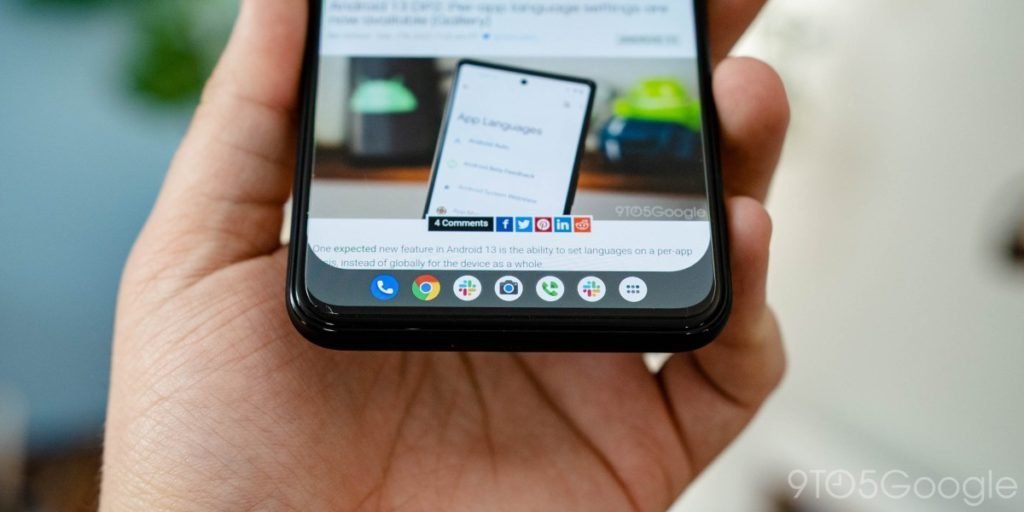
Taskbar Gets its own darwer

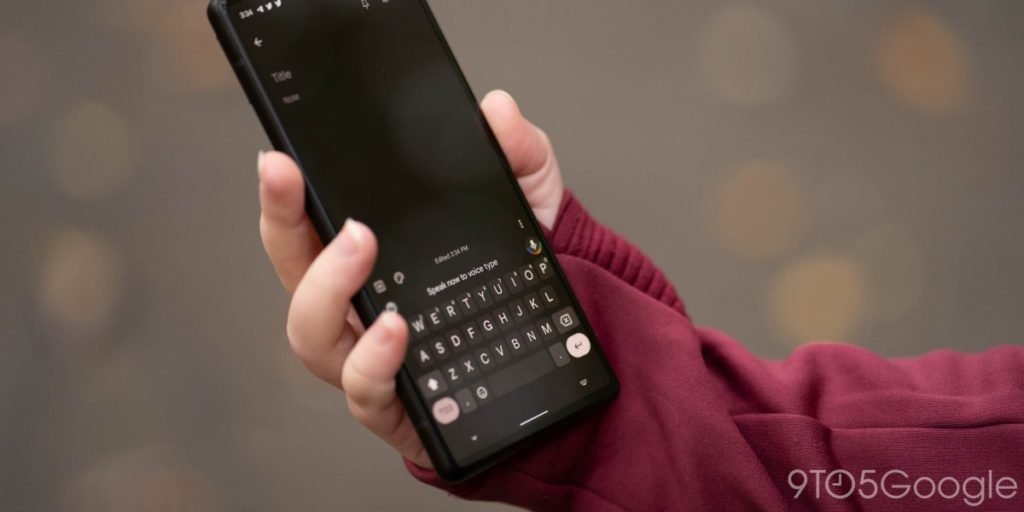
Voice Assistance For Typing

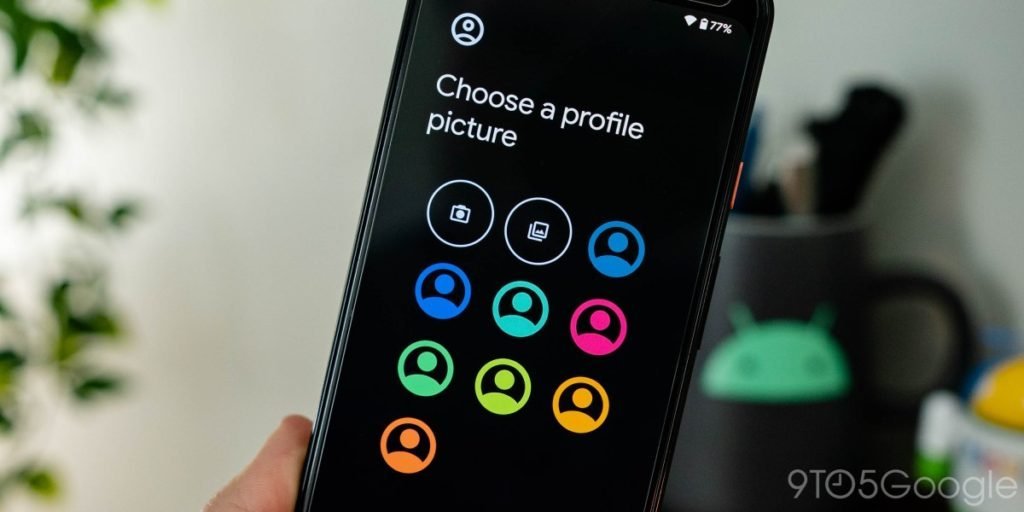
Customized Profile picture

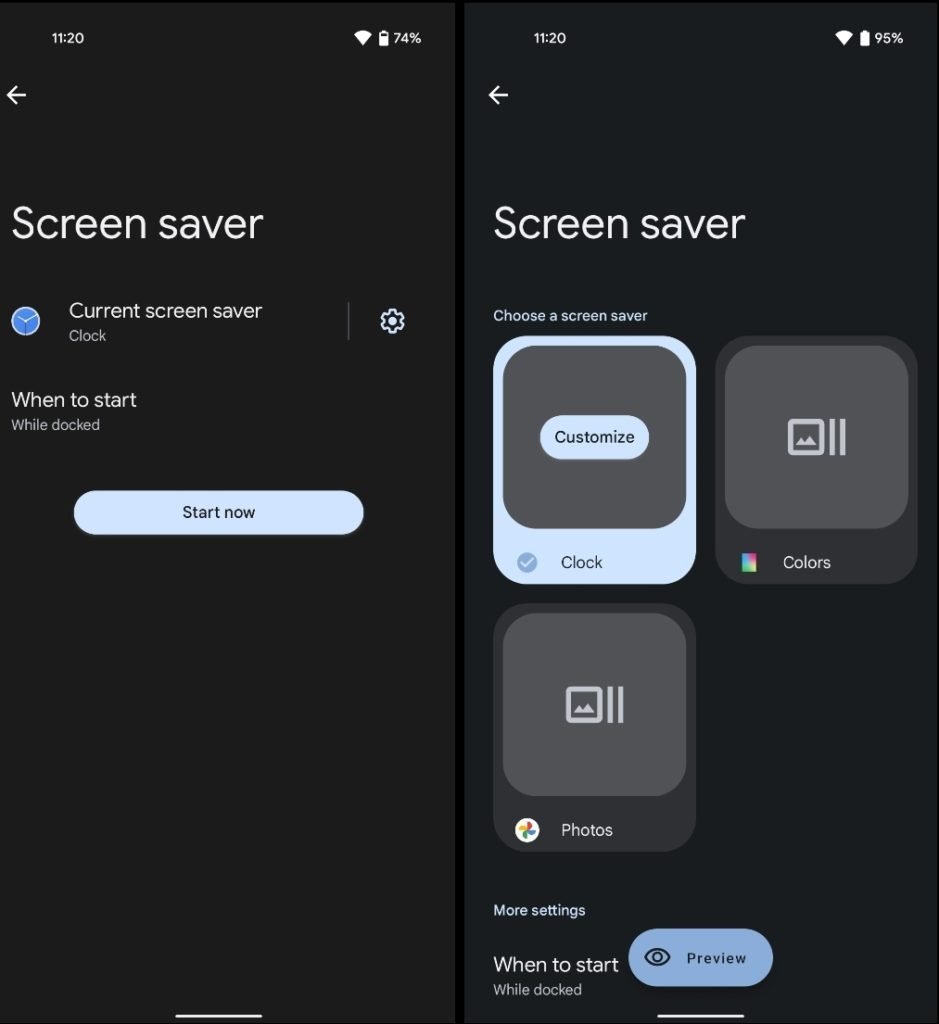
Redesigned ‘Screen saver’ settings menu

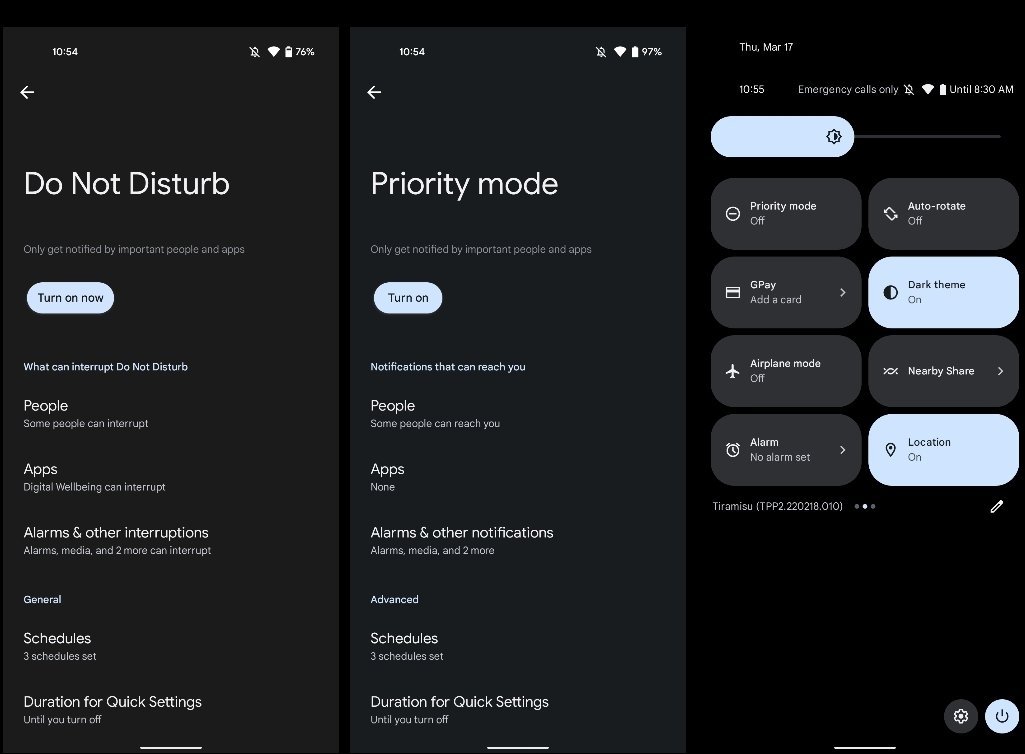
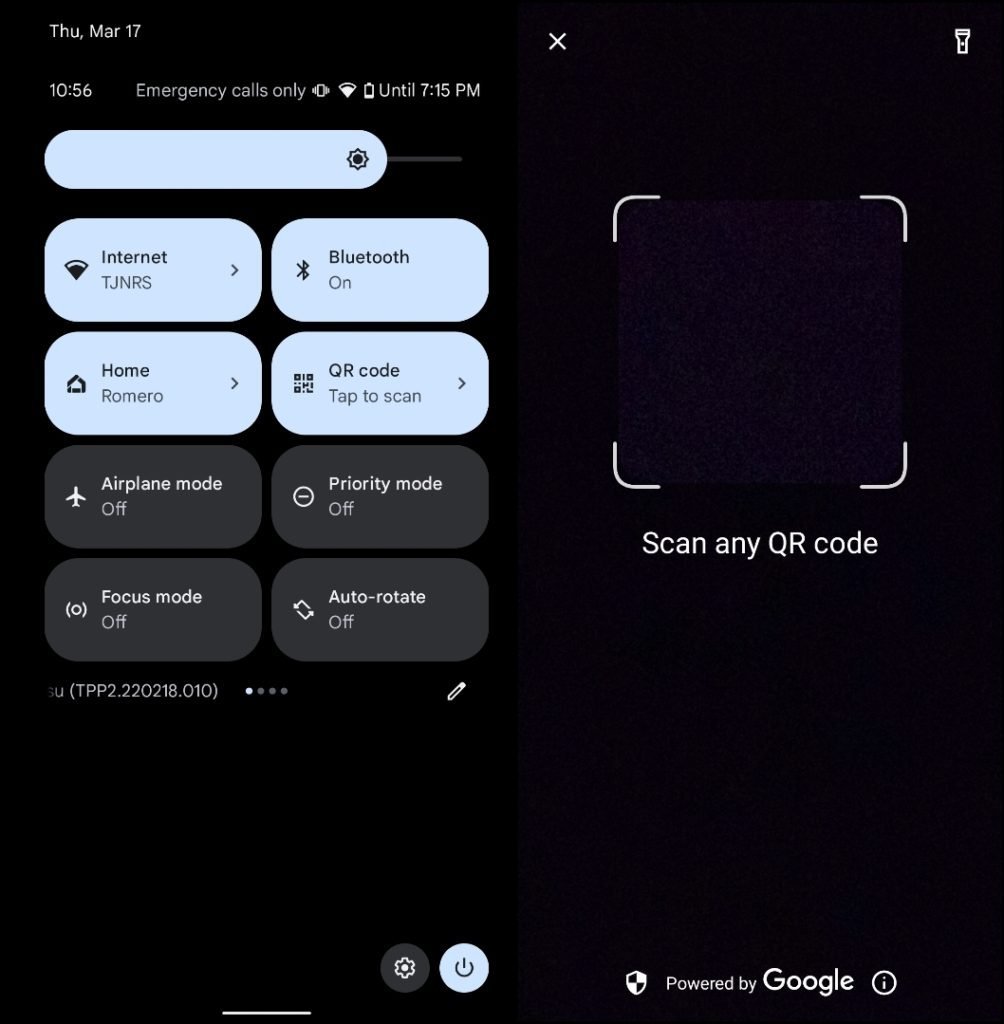
Do Not Disturb now called Priority Mode

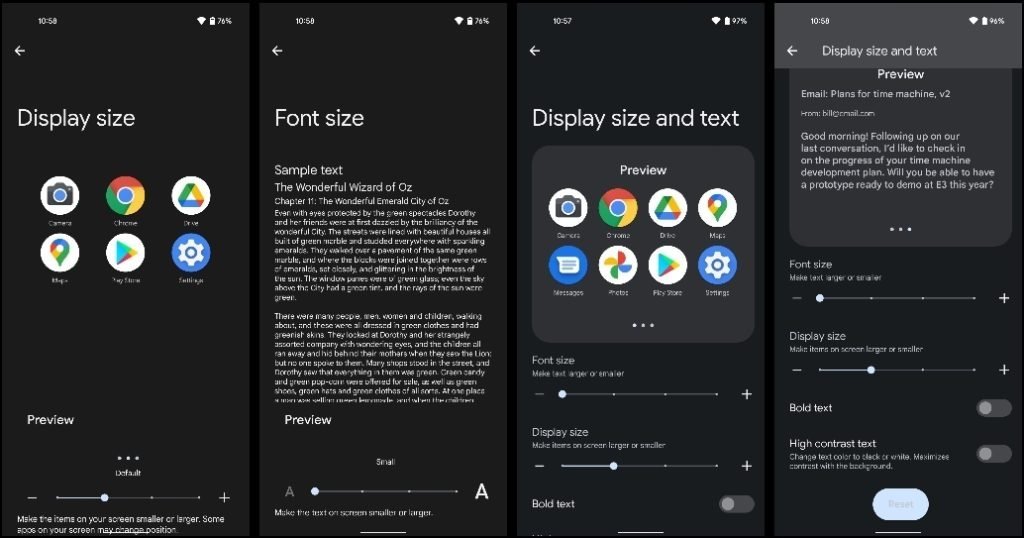
New Display Size and Text Menu

Prominent ‘Fast Pair’ menu in Settings

• Settings > Connected devices > Connection preferences

• Note the Fast Pair icon

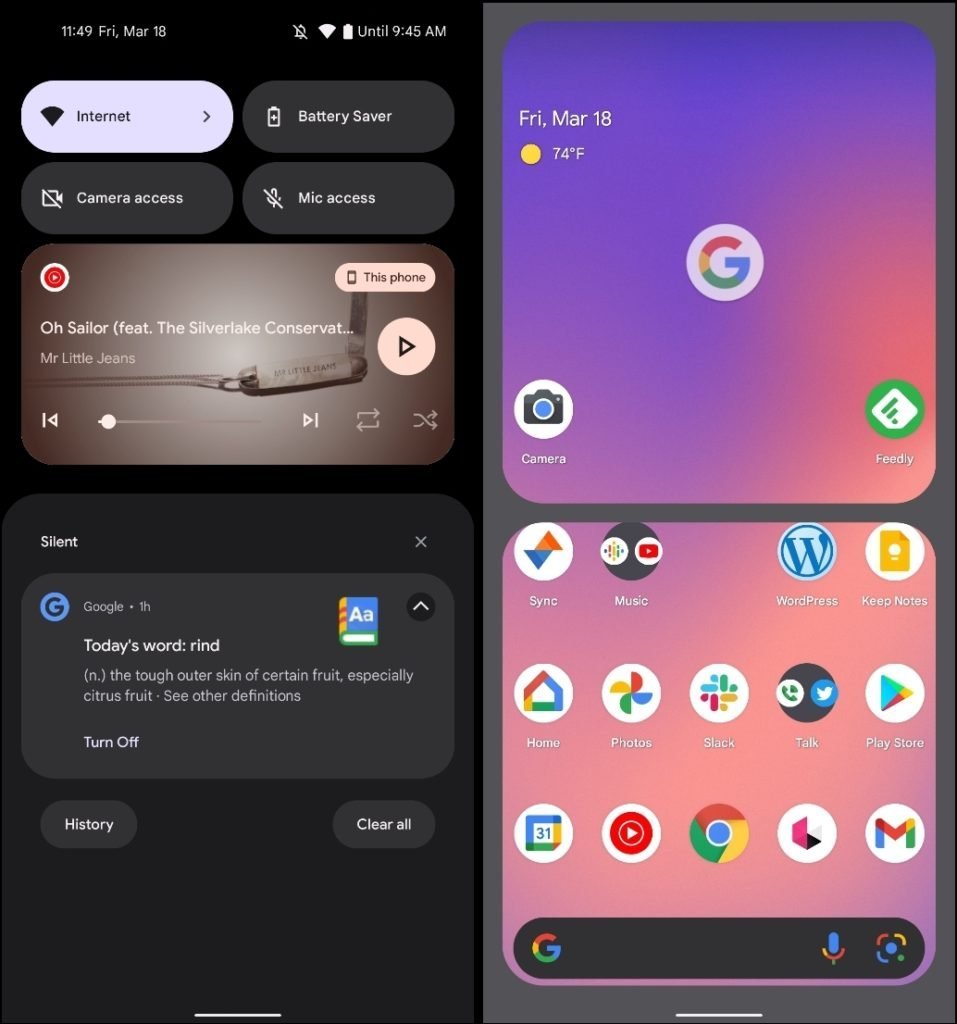
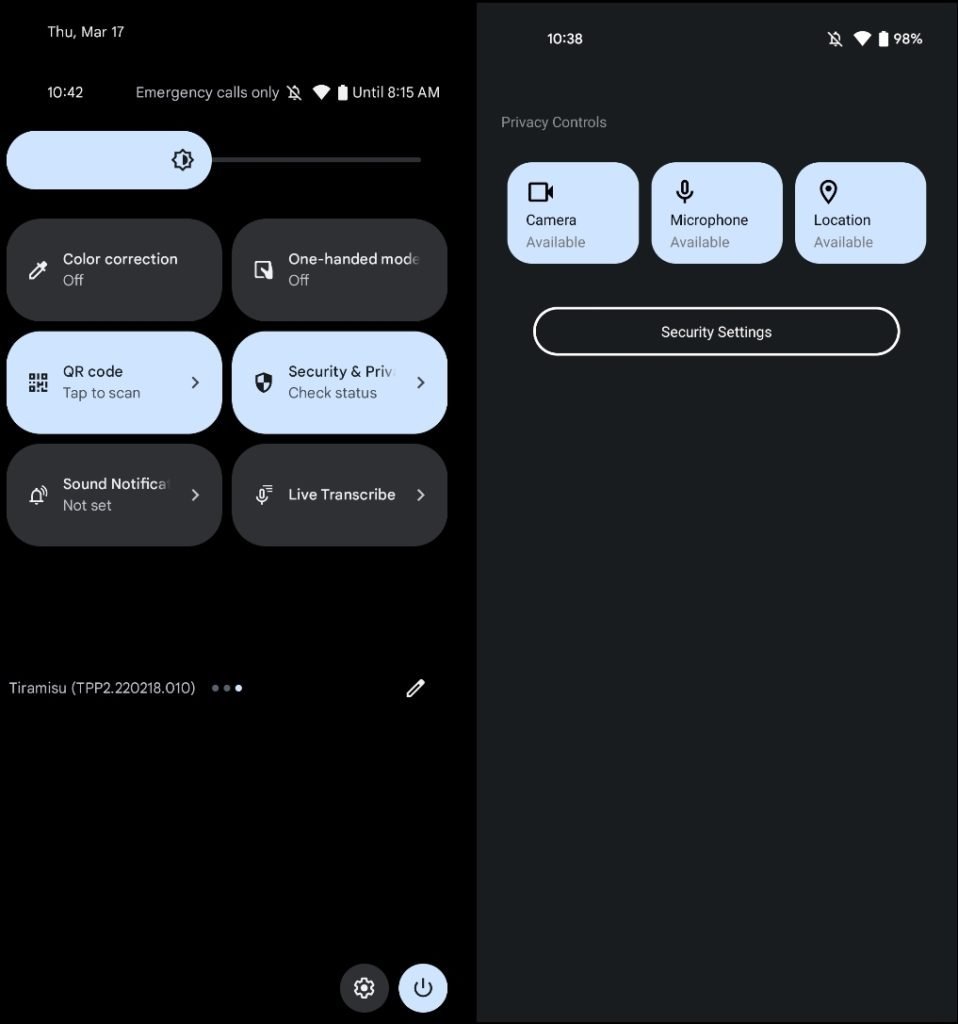
New Security and Privacy QS

Live QR Code Reader

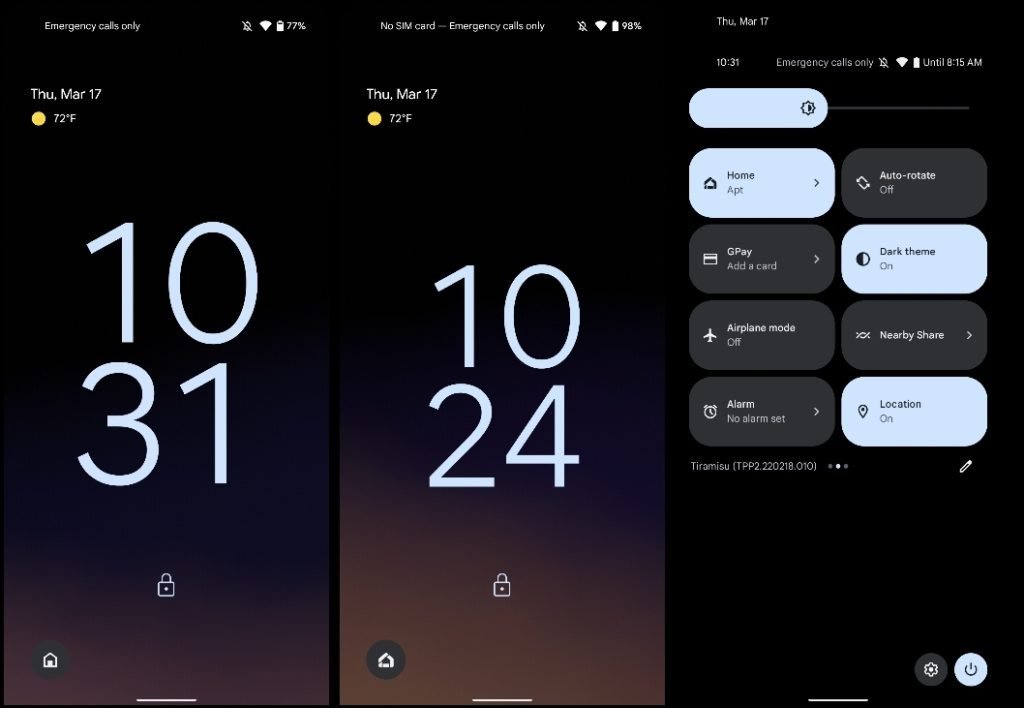
2-line clock gets slightly smaller

  • See below

‘Device controls’ QS tile now called ‘Home’

  • Lockscreen button now matches Themed icon

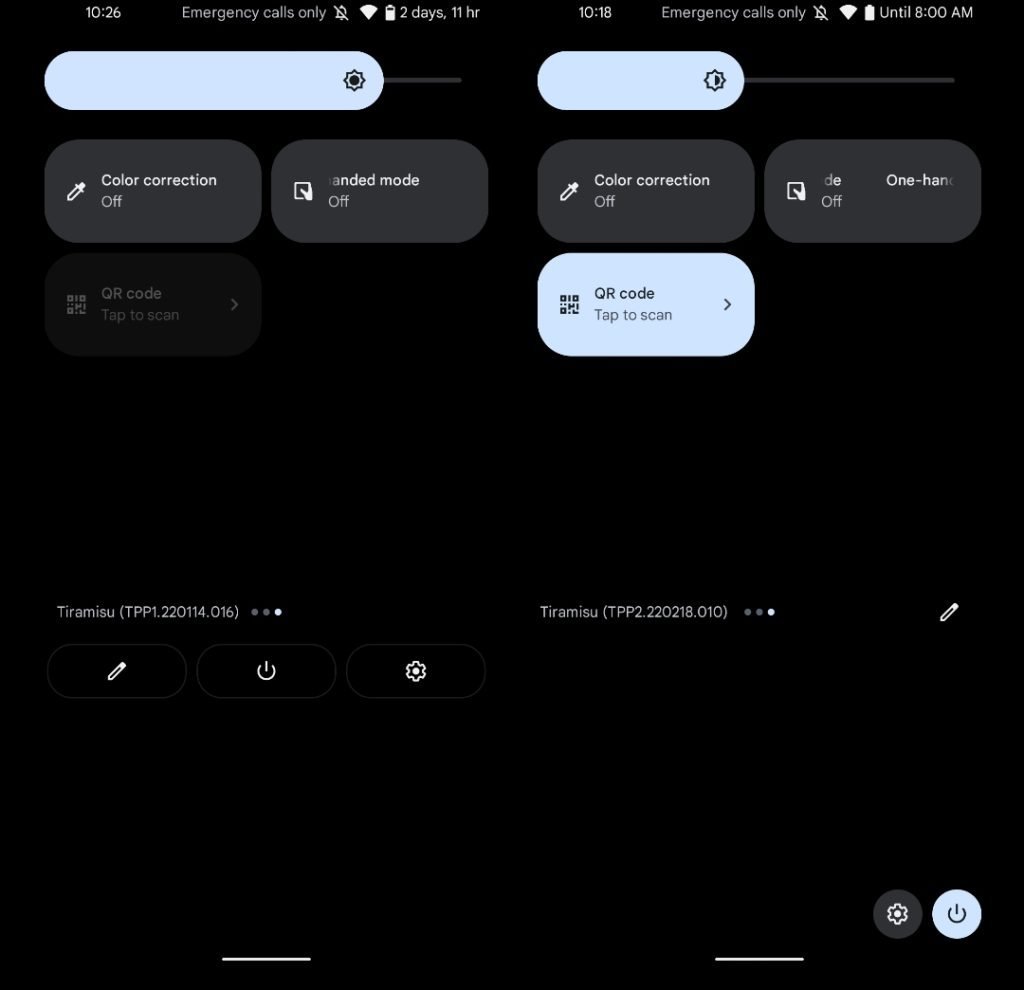
Power menu, Settings shortcut row moves down in fullscreen QS page + FGS Task Manager

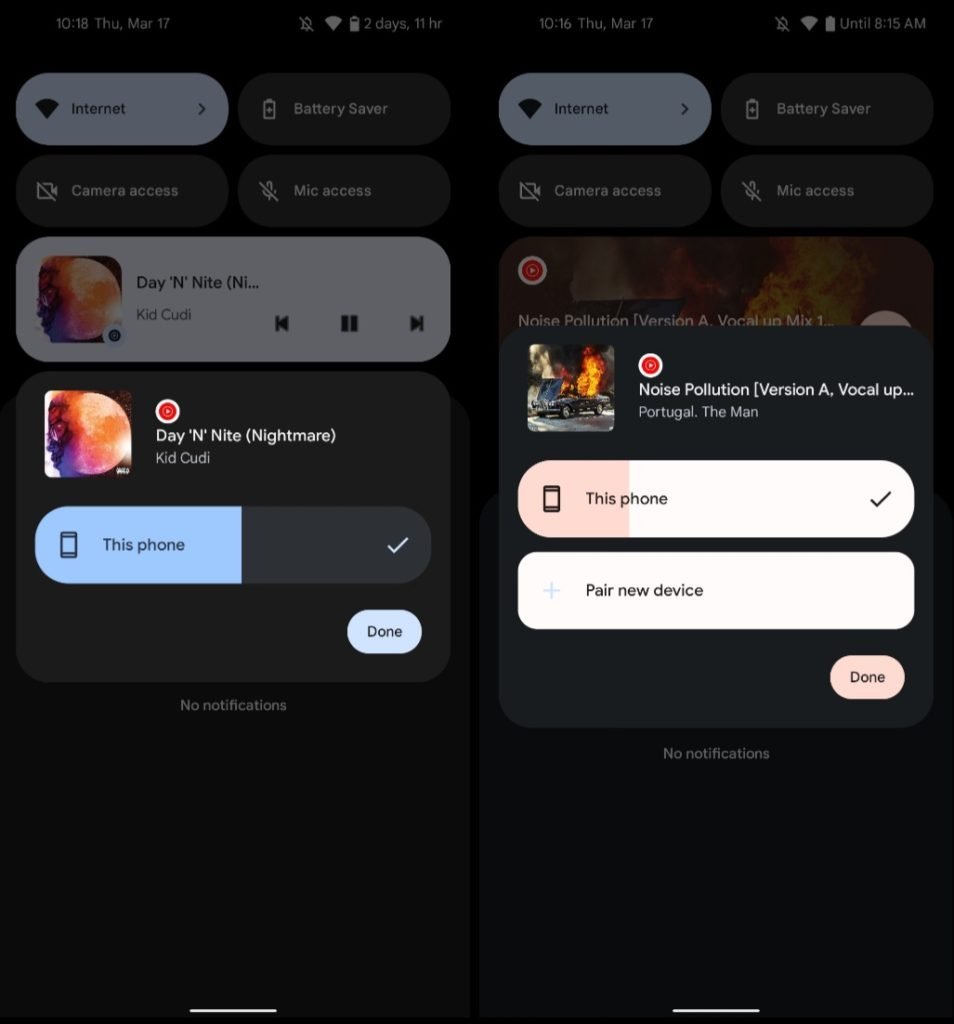
‘Pair new device’ shortcut in playback switcher

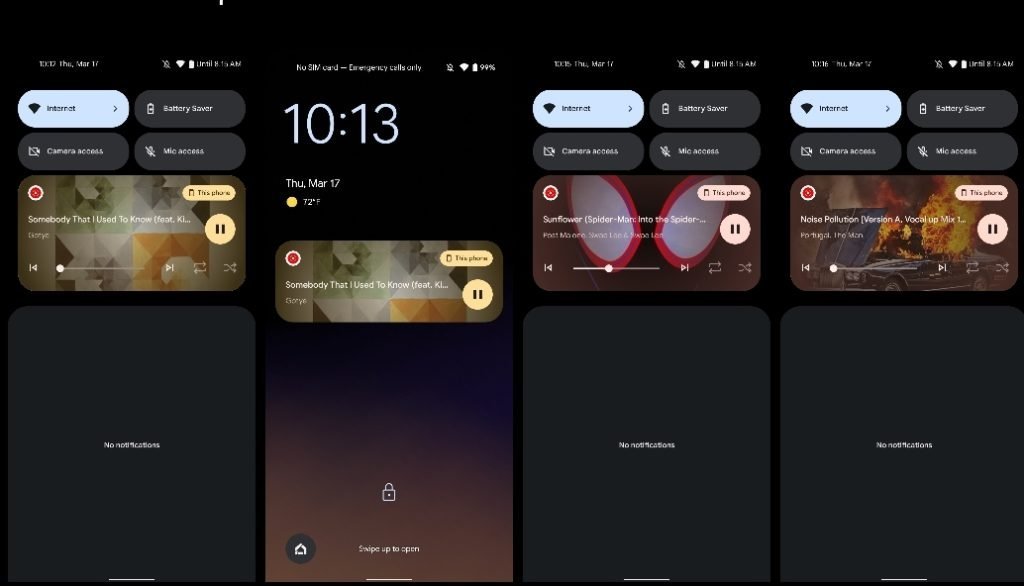
Redesigned Now Playing notification

• Cover art background

• Majority of controls placed at the bottom of expanded notification

Notification permission

How to Get WiFi Password on Android Mobile

0

Android offers a hidden way to know saved WiFi passwords easily. If you are running on Android 10 or later, you might be able to view the WiFi password of the saved networks on your smartphone. In order to that, you need to follow these steps:

  1. Go to the Settings app and head to WiFi & Network.
  2. Click on either the gear or lock icon next to your connected or saved network which you need the password for.
  3. Click on Share Password. You might need to use your fingerprint or pin to unlock this screen.
  4. You will now see a QR code on the screen, with the password written below it.
  5. You can choose to either share the password directly, or if it’s a complicated one, ask the person you want to share it with to scan the QR code using their phone.

Hope its helpful to you.

How To Take A Screenshot on iPhone SE

0

Apple has a few models in its iPhone portfolio, from the latest iPhone SE (2022) and iPhone 13 models, to some older models like the iPhone 12.

While the iPhone 11, iPhone 12 and iPhone 13 models feature Face ID technology though, the third generation iPhone SE features Touch ID, like the second generation iPhone SE and the iPhone 6, 7 and 8 models.

If you have a Face ID iPhone, then you’ll need to press the side button and volume up simultaneously to take a screenshot. If you have a Touch ID iPhone like the new iPhone SE, here’s what you need to do.

How to take a screenshot on the iPhone SE, or iPhone 6, 7 or 8

To take a screenshot on the Apple iPhone SE (2022), iPhone SE (2020), or the iPhone 6, iPhone 7 or iPhone 8, you’ll need to press the power button on the right edge at the same time as the Touch ID home button below the screen.

A screenshot will appear in the bottom left corner of your display when you have successfully taken a screenshot of what is on your display.

How to mark up a screenshot on iPhone SE

When you take a screenshot on iPhone, a small preview appears in the bottom left corner. If you tap on the preview, you’ll be taken to a new screen, where you’ll find a number of options.

You can either delete the screenshot by tapping on the bin icon in the top right corner, or you can crop the screenshot by pulling down on the corners around the screenshot.

It’s also possible to mark up your iPhone screenshot from this page. Tap on any of the pens below the screenshot and you can draw on it as you please. When you are finished, tap on ‘Done’ in the top left corner.

Any other tips?
There is one more tip we have when it comes to screenshots. You can read it in more detail in our separate feature, but if you are screenshotting a webpage in Safari, you can get a full page screenshot and save it as a PDF. Here’s what you need to do.

Open Safari
Find the webpage you want to screenshot
Press and hold the Power Button and Touch ID home button simultaneously
Tap on the screenshot preview in the bottom left corner
Tap on the Full Page tab at the top of the screenshot
Tap ‘Done’
Choose to ‘Save PDF to Files’.

How To Download Facebook Reels Video

0

Although Facebook does not allow downloads of reels video officially but if you want to download reels video from Facebook then this article is for you.

  1. Open Facebook app on your smartphone or on desktop
  2. Go to the Facebook Reel you want to download. You can copy the video link of the video on your smartphone by tapping on three-dot at the bottom and tapping on Copy link option.
  3. Now go to the fdown.net website or any of the Facebook video downloader websites or apps and simply paste the link in the URL box. Click on Download
  4. The website will show you the video and will ask you to download the Facebook Reel in SD or HD quality.
  5. Click on Download to save the video on your smartphone or desktop.

I hope this is helpful.

How To Install Android 13 The Developers Review

0

Android 13 is a major mobile operating system update – but it’s not yet available for consumers to install on their Android phones and tablets. The developer preview is now out. It is simply an early version of Android 13 specifically for developers to test. A public beta will come at a later date for anyone to test – followed by a stable release for all new Android devices.

When will Android 13 officially release?

Google plans to release more Android 13 developer previews throughout spring 2022. It should move to beta releases around April 2022. The company expects Android 13 to be stable by around June 2022 or July 2022. If Google sticks to that timeline, an official release of Android 13 will arrive later in the year – likely around autumn 2022.

How to install the Android 13 developer preview
The Android 13 developer preview, at launch, is limited to running on Google’s Pixel phones. That includes the Pixel 6, Pixel 6 Pro, Pixel 5a 5G, Pixel 5, Pixel 4a (5G), Pixel 4a, Pixel 4 XL, and the Pixel 4. If you have a compatible Pixel phone, you can install the developer preview. You need to flash the Android 13 system image. Instructions for installing the preview can be found here. But Pocket-lint suggests waiting until the first public beta releases or at the very least using a secondary device for the developer preview.

What to Expect in the Android 13 developer preview?
Dave Burke, vice president of engineering for Android at Google, detailed a long list of changes included in Android 13 developer preview on the Android Developer blog. The new features include more theming options and privacy features, new language preferences, and several under-the-hood upgrades.

Theming options
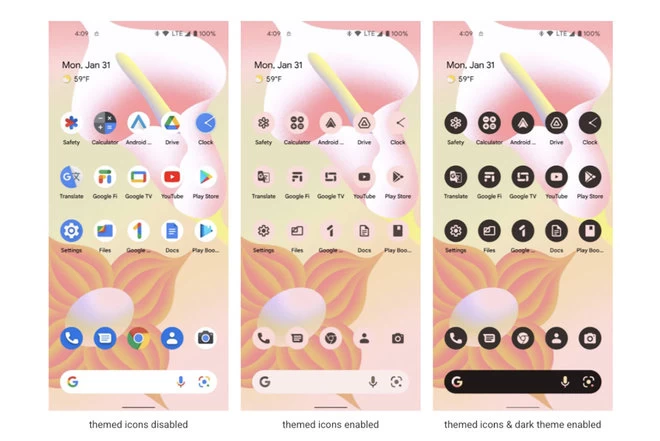
Android 13 is bringing dynamic app icons to all apps, not just Google’s. The themed icons feature lets app icons have a colour tint that matches your wallpaper – but app developers need to offer a compatible app icon. This feature is coming first to Pixel devices, but Google said it’s working with other manufacturers to release it more broadly.

Privacy features
Android 13 has new ways it’ll handle permissions and security. A new photo picker will let you share photos and videos with an individual app without giving the app permission to see all the photos on your device. Google plans to bring this feature to all phones running Android 11 and up.

Under-the-hood upgrades
There are a lot of changes in Android 13, so far, that are not easily detectable. For example, a new Wi-Fi permission will allow apps to find and connect to Wi-Fi points without requiring location permissions. Google also said it’s continuing to develop Project Mainline, its effort to deliver more updates via Google Play rather than at the OS level.

Language preferences
Android 13 language preferences will now include the option to work on a per-app basis. This is useful for multilingual users.

Permission to send notifications
When Google released the second Android 13 developer preview, it included a major new feature: Apps will have to ask your permission to post notifications. Keep in mind iOS has offered a similar feature for years. It ensures only certain apps send you notifications. According to Google’s blog post, asking for permission will be a requirement for Android 13 apps. “Apps targeting Android 13 will now need to request the notification permission from the user before posting notifications,” said Dave Burke.

Bluetooth Low Energy (LE) Audio support.
A
nother big feature uncovered in the second preview is Bluetooth Low Energy (LE) Audio support. The new standard uses an audio codec – called the Low Complexity Communications Codec (LC3) – that can transmit at lower bitrates in higher quality. This should equal less energy consumption and a better battery life.

Will Google talk about Android 13 at I/O?
Google recently announced it will hold its annual developer conference in May 2022. Based on previous I/O conferences, the company will likely officially debut Android 13 there and use the opening keynote to discuss major new features coming in the mobile OS update.

The Best Feature In The New Apple iOS 15.4

0

You can download the Apple iOS 15.4 now, which allows you to use the Face ID even if you have a Face Mask on, among alot of other new features.

APPLE IPHONES ARE CURRENTLY on iOS 15—well, if you’ve updated your iPhone since last September. This version adds an easier way to use Safari, preconfigured modes to instantly change your home screen setup, and huge upgrades to FaceTime, among dozens of other new features. However, the latest iOS 15.4 version adds a few extras, like Face ID that can recognize you even with a face mask on. We break down all the top features here, but first,

Here’s how to iOS 15.4 download:

Make sure you have a recent iCloud backup.
Launch Settings from your Home screen.

  1. Tap on General.
  2. Tap on Software Update.
  3. Tap on Download and Install.
  4. Enter your Passcode, if prompted.
  5. Tap Agree to the Terms and Conditions.
  6. Tap Agree again to confirm.

The download will begin automatically. If the download does not begin right away, you may see a notice: “Preparing to download.” Give it a couple of minutes and the download will begin shortly.

If you’re running a developer or public beta of iOS 15 or iPadOS 15, you should’ve automatically been updated to the public release. If your iPhone or iPad is still set to continue updating beta versions, but you want to stick with the official version, you can remove your beta profile and go back to being a normal Joe.

HOW TO UPDATE THE iOS 15.4 BETA OFFICIAL RELEASE

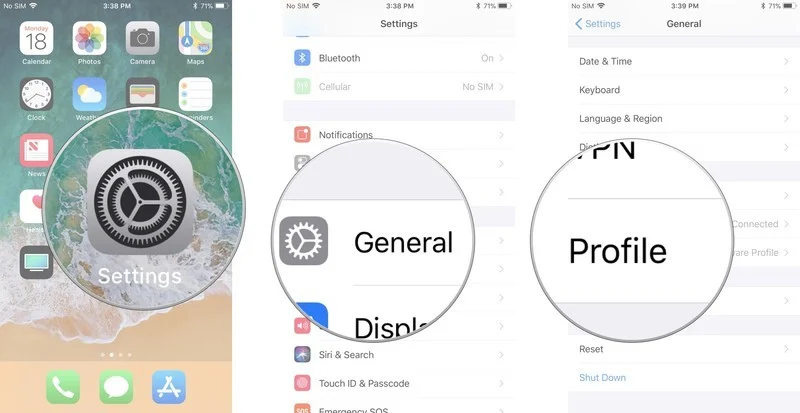
  1. Launch the Settings app on your iPhone or iPad
  2. Tap General
  3. Tap Profiles.
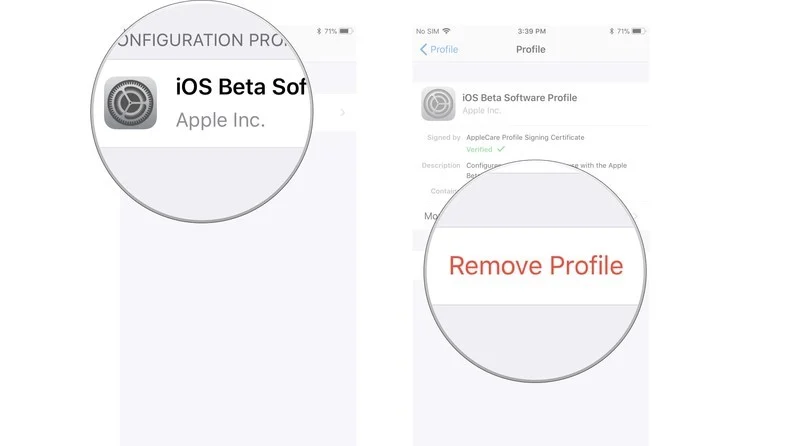
  4. Tap iOS Beta Software Profile.
  5. Tap Remove Profile.
  6. Enter your passcode if prompted and tap Delete once more.
  7. Shut off your iPhone or iPad by holding down the On/Off button and using the Slide to power off slider.
  8. Restart your iPhone or iPad by holding down the On/Off button until you see the Apple logo.

Once you’ve removed the beta profile from your device, you can safely follow the update process as you normally would for an over-the-air-update.

How TikTok Is Also Fighting The Ukraine And Russia War

0

As you know TikTok has attracted its fair share of fame with its viral short videos, and also for state investigations over its practices. But now, the app finds itself stuck in the middle of a real-life war amid Russia’s ongoing invasion of Ukraine. Its users are engaged deeply in a bitter battle over geopolitical agendas that is unfolding right on their phones’ screens. “This is the first war that will be covered on TikTok by super-empowered individuals armed only with smartphones,” reads a column in The New York Times. And New York Magazine event went ahead with coining the term “WarTok,” a portmanteau for TikTok and war. The Chattanooga Times Free Press called it the first TikTok War.

The situation is tricky enough that the White House felt it necessary to summon 30 famous TikTok influencers to brief them on the ongoing Russia-Ukraine crisis, reports The Washington Post. The session held over a Zoom call was to make them aware of the barrage of misinformation hitting the platform, what’s at stake, and the United States’ role in the escalating conflict.

Direct and proxy state involvement

The move was an unprecedented validation of the role that social media platforms now play on a global scale, especially TikTok. In a speech (via Politico), Ukrainian President Volodymyr Zelenskyy also name-dropped TikTokers among people who can help bring an end to the invasion. However, the White House summoning TikTok stars is not merely a PR exercise, and neither is it TikTok’s first tango with the government.

The platform has been used to spread COVID-19 misinformation and dangerous challenges, but at the same time, it has also been utilized to spread awareness by agencies. But there’s another concerning motive behind TikTokers being roped in by the U.S. government — state involvement in giving a different color to the conflict. Right now, the stakes are much higher than ever before.

High enough that the Russian government is also deploying its own cadre of TikTok stars to spread the state’s agenda on the Ukraine situation. An undercover investigation by VICE uncovered a coordinated campaign on Telegram that recruited TikTokers and social media influencers to peddle Russian propaganda in exchange for money. Government authorities are already anticipating graphically disturbing videos from state agents, reports The Guardian.

Too viral for its own good

But there’s another critical side to TikTok’s involvement here, and that happens to be documentation of history and showing the humanitarian side of the war. A 20-year old refugee named Marta Vastuya who is based in London amassed 36 million views of her videos, raising awareness about the difficulties faced by Ukrainians, The Times reports. Another 20-year old Ukrainian named Valeria Shashenok has seen her account getting millions of views as she shows her life in an underground bunker while the streets witness a bloody struggle and bombs flatten buildings outside, according to The Cut.

TikTok’s role in documenting the conflict has been far ahead of any other platform, even if the rivals offer better video-sharing capabilities. As per The Media Manipulation Casebook, videos with the hashtag #Ukraine have been watched over 26.8 billion times on TikTok as of March 9, while Instagram had only touched the 33 million mark. Videos explaining the confrontation and translating the ongoing war for the English-speaking world have been clocking millions of views.

But at the same time, clips parroting the state’s agenda and/or spreading false information have been going viral as well. As The Guardian notes, content related to the Ukraine conflict is easily getting amplified and going viral, whether it is real or fake. In response to the content war, TikTok restricted users in Russia from posting new videos and livestreaming, but misleading videos already available on the platform can still get amplified via direct sharing and algorithmic recommendations.

The inherent platform problems

TikTok’s mobile app doesn’t directly provide the original date a video was posted to assess its legitimacy, making it even more difficult for an average TikTok user to identify misleading content. Filters, on-screen text, and other visual effects, alongside the ability to mix and change background sound, make it even more difficult to discern if the video is real or not. But there’s a lot more to platform problems here.

TikTok pushes the most popular comment on a post to the top, and if that happens to be misleading in nature, the spread of misinformation is only amplified. TikTok restricts media depicting violence, blood, and corpses as part of its content policy. However, blocking such imagery gives off the impression that the war is not as taxing on human lives as it really is, and that it is all about damage to civilian and government properties.

TikTok Sounds are also playing a huge role in the spread of false information. TikTok gives users a liberal hand at extracting audio from a video and then superimposing it on another video. This has allowed the spread of videos with doctored audio — often lifted from older clip. Media Matters has debunked several videos accumulating millions of views that had sounds pulled from unrelated incidents, some of which are years old.

A video that garnered 7 million videos and purportedly showed Ukrainian soldiers bidding an emotional goodbye was lifted from a 2017 film called The War of Chimeras, and was debunked by Politifact. Videos clipped from military training exercises, and even video games, according to USA Today, have been intentionally shared on the platform as jets dropping bombs in the warzone.

Setting social media precedent in a war-torn world

TikTok has actually served as a mobile theater, giving the world a front-row seat to the bloody conflict even before it started. TikTok users hailing from border regions and villages documented the movement of troops and mobilization of army vehicles weeks ahead of the on-ground skirmish. But at the same time, it risked the spread of content that might invoke mass hysteria and propaganda if it wasn’t properly verified. Even journalists and media houses can fall victim to such misleading content, as noted by Sandra Joyce from the cybersecurity and global intelligence firm Mandiant.

Then there’s the financial scam side of TikTok in the middle of the Russia-Ukraine conflict. Bad actors impersonating Ukrainian citizens and livestreaming to show the on-ground situation have collected virtual items as sympathy reward from viewers that they could later monetize, reports Financial Times. But why would someone make a fake video documenting the havoc in Ukraine?